
Your Website Has a New Kind of Visitor — And It Doesn’t Browse Like You Do
Think about the last time you visited a website. You scanned the page, clicked a few things, maybe filled out a form. It felt natural because websites are built for human eyes and human behavior.
But here’s what’s changing fast: AI agents are now doing all of that on your behalf.
They’re searching for products, completing checkouts, filling in contact forms and too many other things without you lifting a finger. And the way they “see” your website is completely different from how humans like you and I do.
Humans read pages visually. Search crawlers parse raw HTML. AI agents navigate your site through something called the accessibility tree. If your site isn’t structured well for it, those agents are stumbling around in the dark.
At Google I/O 2026, Chrome Developer Advocate Una Kravets said something every web developer should think about
“Because most agents navigate the web using the accessibility tree, every ARIA role or label that you optimize doesn’t just help a human. It makes your site more actionable for an agent, too.”
That’s a big deal. Let’s discuss it from the ground up. So that you know how AI Agents navigate your website using the Accessibility Tree.
What Is the Accessibility Tree?
You’ve probably heard of the DOM – the Document Object Model. It’s the full blueprint of your web page. Every <div>, every <span>, every element lives there.
The accessibility tree is built from the DOM, but it’s a much cleaner version of it. Chrome developer Johan Bay describes it precisely:
“The accessibility tree is a derivative of the DOM tree. Its structure is roughly the same, but simplified to remove nodes with no semantic content such as a <div>element purely used for styling.”
Further, Cynthia Shelly, Chrome’s Lead Program Manager for Accessibility, puts it even more plainly:
“The buttons and headings are there, but spans and divs that are only for styling aren’t there.”
What remains after that pruning process is the structure of your page, only the parts that have real semantic significance. And each of those parts has two key properties:
- A role — what the element is (button, heading, form, navigation)
- A name — what it’s called (derived from its content, a <label>, or an aria-label attribute)
Here’s a quick example. Take this HTML:
| <label for=”age”>Age</label> <input id=”age” type=”number” value=”42″> <div> <button>Back</button> <button>Next</button> </div> |
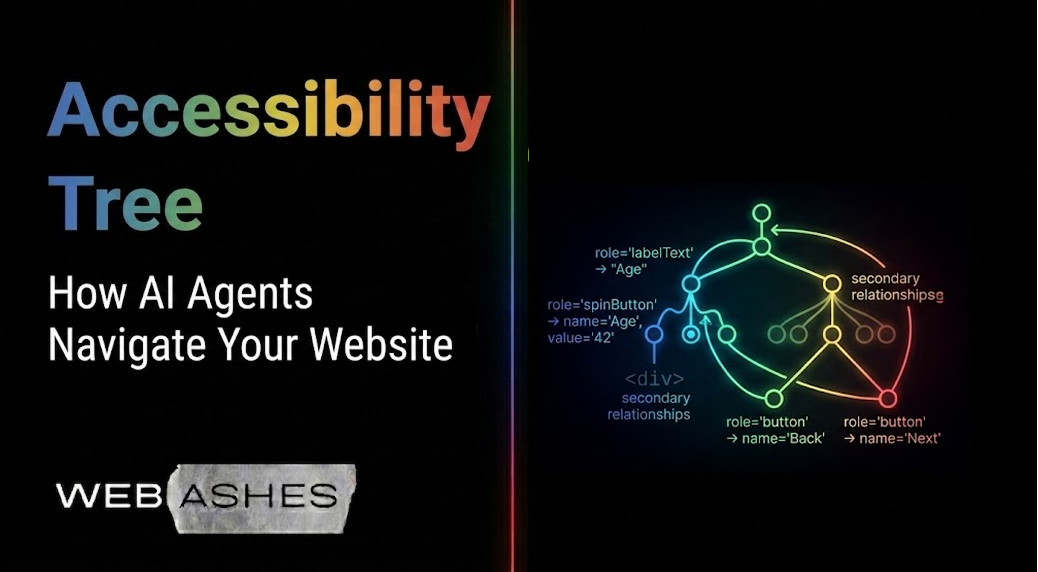
However, in the accessibility tree, Chrome sees:
| role=’labelText’ → “Age” role=’spinButton’ → name=’Age’, value=’42’ role=’button’ → name=’Back’ role=’button’ → name=’Next’ |
The <div> wrapping those buttons? They are now gone, because it had no semantic job. Everything else is clean, structured, and immediately understandable by any system reading it.
One thing Shelly points out that developers often overlook: “The accessibility tree has many secondary relationships that aren’t always obvious when looking at the DOM.“ Things like which label belongs to which input, which element owns which child, which group a set of radio buttons belongs to.
These relationships matter to agents just as much as they matter to screen readers.
The Accessibility Tree Is the New Sitemap
We’ve had XML sitemaps forever. It’s true for every website. They tell crawlers which pages exist. But a sitemap doesn’t help an agent. Because, AI agents need to know which element and content does what so that it can do the job on the behalf of your website visitors or someone putting the prompt in the AI chatbot.
For instance, when AI agents navigate through your contact form page, they find a form, fill it in, and submit it. And, that’s where the accessibility tree changes the game.
You can also think of it as a live, interactive map of everything an agent can do on a given page right now. It’s not filed away in your server root – it’s built dynamically from your page structure every time the page loads.
Una Kravets introduced this framing at Google I/O 2026 directly: the accessibility tree is now the primary “sitemap” for AI agents. And Chrome DevTools now makes this visible to developers. The Full Page Accessibility Tree, introduced by Johan Bay, lets you toggle between the DOM view and the accessibility view right in your browser. What you see in that view is almost exactly what an AI agent sees when it lands on your page.
As Cynthia Shelly noted about this DevTools feature:
“With the new full page accessibility tree in Chrome DevTools, it’s now a lot easier to track down accessibility bugs. You can see the accessibility tree for the whole page, how it relates to the DOM, and easily switch between them.”
If what you see in that view looks sparse or confusing, that’s a real problem, for both agents and for humans.
How Agents Actually Use the Accessibility Tree
Here’s what an AI agent actually does when it visits your site.
First, AI agents perceive and interact with the web through the accessibility tree, as their primary roadmap for navigation. Then, it looks for objects with defined roles and names. For example, a button with role=”button” and the name “Add to Cart” is immediately understood. On the other hand, non-semantic elements are used for visual design but do not contain any functional metadata, such as a <div> that is styled to look like a button but has no underlying functionality.
Here’s it’s simple breakdown:
- Defined Roles: Attributes like role=”button” tell the agent that an object is interactive and can be “clicked” or “activated”.
- Accessible Names: A name like “Add to Cart” provides the context the agent needs to understand the purpose of that action. When these are present, the agent can “immediately understand” the site’s structure and take the requested action on your behalf
And, the problem with Styled <div> is: Developers often use <div> or <span> elements and style them with CSS to look like buttons. While a human sees a button, the browser’s accessibility tree sees a “generic container” with no inherent function.
- Filtering: Because the accessibility tree is designed to remove “uninteresting” nodes that carry no semantic meaning, these styled <div> elements are often ignored or filtered out entirely.
- Result: To an AI agent, that element is a blank wall, it has no role to identify it as a tool and no name to describe its function. The agent cannot “see” it as an interactive element, making the site “unactionable”
Actually, the agent looks at properties like focusable, editable, and clickable to figure out what it can actually do. Then, it acts based on the task it was given. If a user told their Gemini agent “contact this company and ask about pricing,” the agent scans the accessibility tree for a form, uses accessible names to understand each field, fills them in, and submits.
Notice what’s missing from this process: screenshots, pixel analysis, raw HTML scraping. Those methods exist, but they’re slow and fragile. The accessibility tree is fast, reliable, and precise, which is exactly why agents prefer it.
The accessibility tree serves as a highly efficient, simplified derivative of the DOM. So that, it can allow AI agents to process web structures quickly and accurately by focusing strictly on semantic roles and names.
What Breaks When Your Accessibility Is Poor
Let’s be concrete about what poor accessibility looks like in practice.
- You might have a search bar with a placeholder that says “Search…” but no <label> or aria-label. An agent sees an unnamed text input. It has no idea what it’s for.
- Maybe you have a modal dialog like popup that appears when someone adds to cart. If that modal doesn’t have role=”dialog” and a proper label, an agent might not even recognise it as a meaningful interruption and get stuck.
- Or your navigation uses a <div> with click handlers instead of a <nav> element. Visually it works fine. But, for an agent, it’s essentially invisible.
These aren’t edge cases. They’re common patterns on sites built over the last decade. What used to be “an accessibility issue affecting a small percentage of users” is now “a blocker for every AI agent trying to interact with your site.”
The good news: fixing these issues is straightforward. And every fix helps real human users too.
The Canvas Problem — And How HTML-in-Canvas Solves It
There’s one category of content where the accessibility gap has been especially painful: anything rendered inside a <canvas> element.
Canvas powers 3D product viewers, interactive maps, data visualisations, and WebGL scenes. These look stunning. But traditionally, they’ve been completely invisible to the accessibility tree. Whatever’s drawn inside is a pixel-level black box including text, buttons, 3D objects. But, none of it exists from an accessibility perspective.
And, to change this, there will be the new HTML-in-Canvas API, which is now in the origin trial. Thomas Nattestad, Product Manager at Chrome, demonstrated it at Google I/O 2026:
“Accessibility information is now also exposed, even though [an] element is inside of the canvas. And if we come over here into the accessibility tree view, you can see all of that content which would be accessible to, for example, a screen reader.”
In practice: you can have your immersive 3D product viewer, and the “Add to Cart” button inside it can still be readable and clickable by an AI agent. The visual experience is unchanged. The accessibility tree now has real content to work with.
For any site using canvas-based experiences like e-commerce product displays – this would be significant as it moves toward stability.
The Tools Google Built for This
Google didn’t just announce the problem. Google I/O 2026 came with a set of practical tools to help developers build agent-ready sites.
Lighthouse Agentic Browsing Audit
Lighthouse now has a new audit category specifically for agentic browsing. It validates ARIA roles, checks declarative metadata, and verifies that agents can actually complete meaningful tasks on your page – like finding and submitting a form. Treat this score like a new vital sign alongside your Core Web Vitals.
Chrome DevTools for Agents
This is the most immediately useful tool. Chrome DevTools now exposes a Model Context Protocol (MCP) server that gives AI coding agents direct runtime access to your page, including the accessibility tree.
Paul Kinlan, Lead of Chrome Developer Relations, explained the capability at I/O: “We give you direct access to… the accessibility tree. And by bringing this runtime data into your tools, [AI agents are] able to perform very sophisticated diagnostic tasks.“
In practice, an AI coding agent can autonomously inspect your live page, spot missing ARIA labels, identify why certain nodes are being ignored, and fix the issues without a human developer in the loop.
Plus, the Computed Properties pane in DevTools is especially useful here. It shows you exactly why a node might be invisible to the tree, whether it’s marked aria-hidden=”true”, has no semantic role, or is being ignored for another reason.
WebMCP (Web Model Context Protocol)
WebMCP goes a step further. It’s a proposed open web standard that lets developers explicitly declare callable tools for agents – beyond what the accessibility tree alone can offer.
Instead of an agent reverse-engineering your page structure, WebMCP lets you say: “Here’s a searchProducts function. Or, here’s what parameters it takes.” Through this process, the agent calls it directly without any DOM scraping.
So, it’s more precise and reliable. The experimental origin trial starts in Chrome 149. If you have high-value interactions on your site (search, checkout, booking), it’s worth evaluating now.
Accessibility and AI Optimisation Are Now the Same Work
There used to be a mental separation in how developers approached these two things. Accessibility work was its own track – important but often ignored. AI and search optimization was a separate conversation entirely.
That split is gone.
When you add a proper aria-label to an icon button, you’re helping a screen reader user understand what it does and you’re helping an AI agent know what to click. When you use a semantic <nav> element instead of a styled <div>, you’re helping keyboard-only users navigate and you’re telling agents where navigation lives. The same code.
Two audiences. Both benefit.
And, this is the practical upside of what Una Kravets described: optimising for accessibility is optimising for agents. They’re no longer parallel workstreams competing for the same sprint capacity. They’re the same task.
Where to Start to Optimize for AI Agents
You don’t need to overhaul your entire site at once. Here’s a sensible starting point.
Open your site’s accessibility tree in DevTools. Go to DevTools → Elements → Accessibility, and toggle on the Full Page Accessibility Tree. Spend five minutes looking at it. And, ask yourselves, does your navigation show up with a role=”navigation” label? Do your buttons have names? Do your form fields show up with understandable labels? If something looks confusing to you, it will be confusing to an agent.
Audit your interactive elements. Every button, link, input, and form on your key pages needs an accessible name. Run the Lighthouse accessibility audit and prioritise anything flagged under “Elements do not have accessible names.”
Run the new Lighthouse Agentic Browsing Audit once it’s available in your Chrome version. Add it to your regular site health checks.
Check your canvas content. If you have any canvas or WebGL experiences, track the HTML-in-Canvas API origin trial and plan to implement it when it stabilises.
The Bottom Line
Accessibility used to live in a corner of web development, important but often deprioritised. That era is over.
The accessibility tree is now the primary interface between your website and AI agents. Every well-labelled button, every semantic heading, every properly structured form is a direct signal that your site is usable. Every unlabelled element, every <div> pretending to be a button, every canvas scene with no accessibility layer is a dead end for agents.
Your site is already being visited by them. The only question is whether they can do anything useful when they get there.
Sources: Chrome DevTools documentation by Johan Bay, Google I/O 2026 Developer Keynote, Chrome for Developers blog, speaker quotes from Cynthia Shelly, Una Kravets, Thomas Nattestad, Johan Bay, and Paul Kinlan.
Leave a Reply