
The Beautiful Trap of Canvas
Building visually rich web experience like a 3D product viewer, an interactive map, or a WebGL-powered dashboard means you were forced to go through a terrible experience.
You could use the DOM: which contains rich text layout and is accessible, searchable, translatable. Plus, it can be hooked into every browser feature you love. But when it comes to complex graphics, it becomes slow and limited.
Or you could use Canvas/WebGL: buttery-smooth 3D graphics, pixel-perfect control, low-level performance. But following this approach, your content becomes a “grid of pixels” which makes them invisible to search engines, screen readers, AI agents, and even the browser’s own Find-in-Page feature.
And for years, developers have had to pick a side. And for visually ambitious sites, Canvas usually won. However, this comes at a significant cost to website owners in terms of searchability and accessibility.
But, from now, that cost just disappeared.
As Matthias Rohmer from Chrome put it at Google I/O 2026:
“The new HTML-in-Canvas API now does the impossible. With this, you can now integrate real DOM elements directly into your Canvas environment.”
Table of Contents
What Is the HTML-in-Canvas API?
The HTML-in-Canvas API lets you draw real, live DOM elements directly into a <canvas> context: including 2D canvas, WebGL, and WebGPU textures. But, the good site it, it still manages to keep those elements fully part of the HTML tree.
Thomas Nattestad, Product Manager at Chrome, explains it well:
“This API lets you draw DOM content directly into a Canvas or a WebGL and WebGPU texture, while keeping the UI interactable, accessible, and hooked up to your favorite browser features.“
The key phrase here is “hooked up to your favorite browser features.” Which means, the DOM isn’t just there for layout; rather , it’s the layer that gives you other facilities like Find-in-Page, translation, accessibility, autofill, DevTools inspection, and search indexing.
The thing is when your UI lives inside Canvas pixels, all of that breaks. But, when your UI is DOM content painted into Canvas, all of that works automatically.
Una Kravets, Developer Advocate at Chrome, summed up the full scope of what this unlocks:
“Because it’s part of the DOM, every element in your Canvas is now searchable, accessible, selectable, translatable, and interacts with your built-in browser features like Autofill.“
And Paul Kinlan, Lead of Chrome Developer Relations, didn’t hold back his enthusiasm:
“I just think this is a game-changing API, and I think it’s going to change the way that we experience the web.“
How HTML-in-Canvas Improves Searchability (Four Ways)
This is the core question. Let’s go through each mechanism of improving searchability in plain terms.
1. Search Engine Crawlers and AI Agents Can Finally Read Canvas Content
Traditionally, a search crawler visiting a WebGL page would see the <canvas> element and essentially hit a wall. Whatever text or UI was rendered inside was painted pixels, there was nothing semantic to extract.
With the HTML-in-Canvas API, the text and elements inside your canvas remain part of the live HTML tree. Web crawlers and AI agents can seamlessly index and read the text rendered into your 2D and 3D scenes. This applies to everything from product names in a 3D viewer to article text rendered inside an immersive reading experience.
For SEO and AEO (Answer Engine Optimization), this is significant. You no longer have to maintain a separate “text-only” fallback version of canvas content for indexing purposes.
2. Native Find-in-Page Works Inside 3D Scenes
This one is hard to believe until you see it. Now, a user can press Ctrl/Cmd + F and search for a word – and the browser will find and highlight that phrase or word inside a WebGL texture or 3D scene.
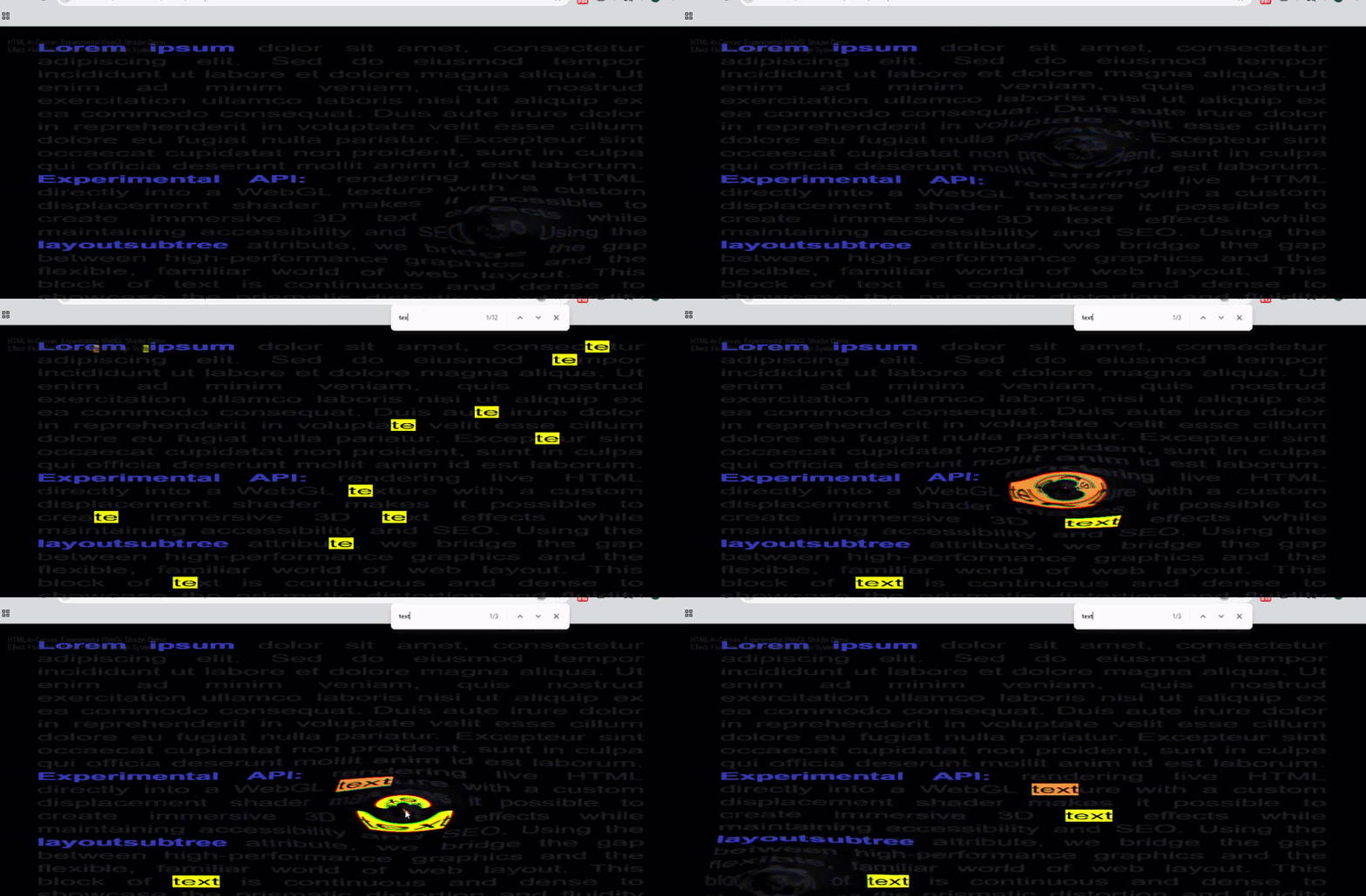
Users can use find-in-page (Ctrl/Cmd+F) to search for text, and the browser will highlight it directly within your WebGL textures. Because the content remains “real” HTML rather than just static pixels, native browser features like Find-in-Page (Ctrl/Cmd + F) stay fully functional. When a user searches for a word, the browser automatically identifies its position and highlights it directly within the 3D scene,
Even in advanced demos, like a refractive glass overlay, the highlight even respects the scene’s physics. What happens here is that it is distorted through the shader, just like the surrounding content. You’re not getting a flat overlay. You’re getting genuine semantic integration with the 3D rendering.
For a 3D book experience, a product manual inside a WebXR scene, or an in-game billboard, users can search inside them just like any webpage.
3. Browser Translation Works Natively
In the HTML-in-Canvas API, the text is semantically understood as DOM content. Hence, the browser’s built-in translation feature works automatically. Think about a visually complex 3D scene where a WebGL-rendered book written in English can be translated to German or Welsh by the browser without breaking the canvas rendering.
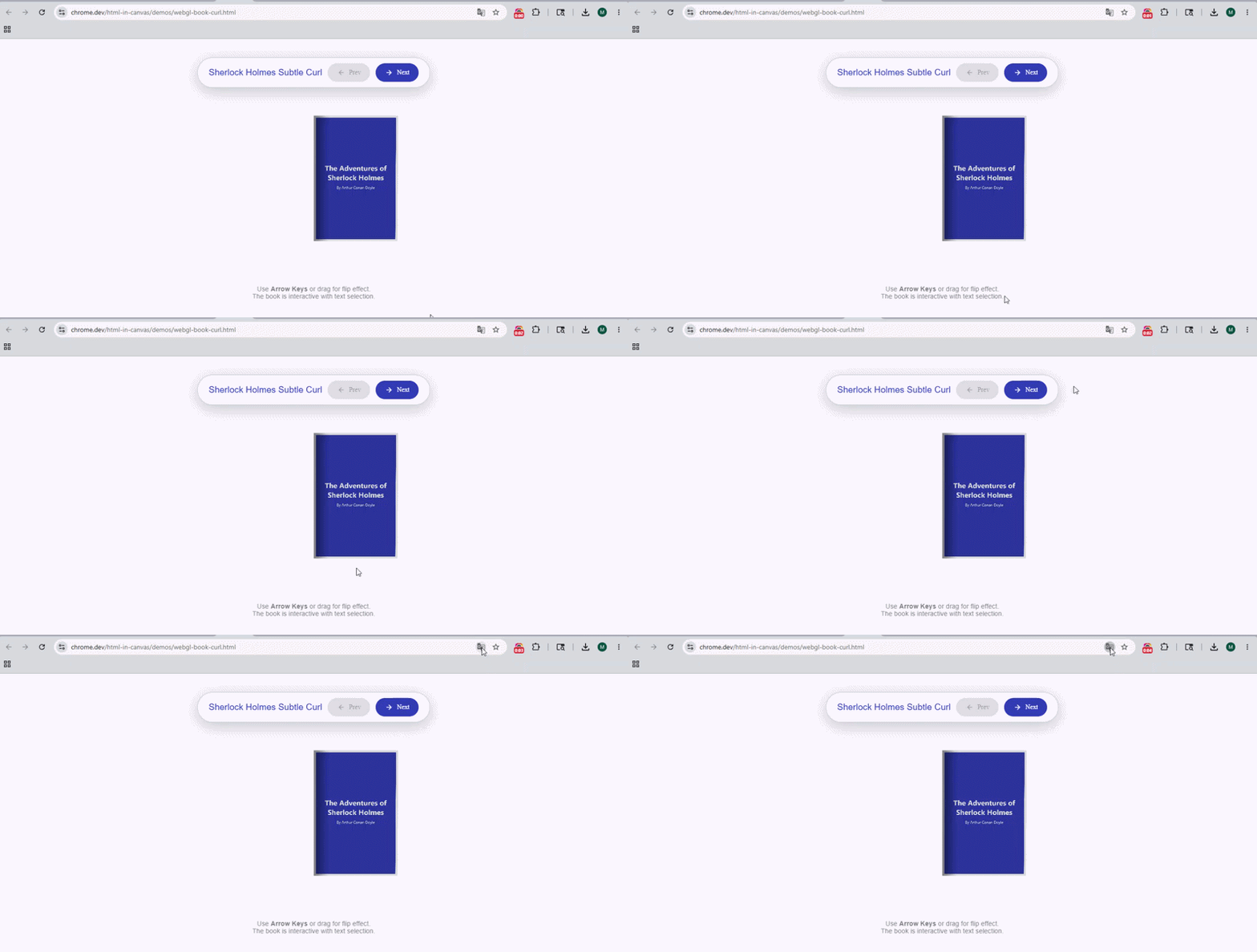
And, there are more advantages. The 3D visual stays exactly the same. The text updates. No custom translation logic required.
This is also a meaningful win for international SEO. Canvas experiences that previously required custom multilingual builds can now lean on native browser translation.
4. The Accessibility Tree Gets the Full Picture
This one matters especially for AI agents. To expose canvas content to the accessibility tree, developers set a layout subtree attribute on the <canvas> tag. This makes the browser aware of the content nested inside the canvas, preparing it to be displayed inside the canvas, and exposing it to accessibility trees.
Once that’s done, screen readers and AI agents can navigate your canvas content the same way they navigate regular HTML. Thomas Nattestad demonstrated this live at Google I/O 2026:
“Accessibility information is now also exposed, even though this element is inside of the canvas… you can see all of that content which would be accessible to, for example, a screen reader.“
He went further, showing that a canvas-heavy page can still achieve a perfect accessibility score:
“We can even get an accessibility score of 100, even though all of that content is being put inside of the canvas.“
For AI agents, which primarily navigate the web using the accessibility tree. This means your immersive 3D experiences are no longer dead zones. Every button, heading, and form field inside them becomes actionable.
What Else You Get for Free in HTML-in-Canvas API
Beyond searchability, the HTML-in-Canvas API unlocks a set of browser features that were previously impossible in canvas:
- Text selection and copy/paste — users can highlight text inside 3D scenes
- Right-click context menus — native browser menus work inside canvas
- Autofill — form fields rendered into 3D textures support autofill
- Browser extensions — a text-replacement extension will automatically update text rendered on 3D meshes
- DevTools inspection — right-click any canvas-rendered element and inspect it like normal HTML; change a CSS class and watch the 3D texture update in real time
- Dark mode, zoom, reader mode — all browser-level features apply naturally
Browser extensions work natively. For example, a text-replacement extension will automatically update the text rendered on your 3D meshes.
As Nattestad framed the overall proposition:
“Now, you no longer have to choose between visually complex and stunning or interactable and accessible.“
How to Preview HTML-in-Canvas and Test Searchability
Before you dig into implementation of HTML-in-Canvas API, here are three ways to see the API’s searchability features in action.
Native Find-in-Page
The simplest test. Open any HTML-in-Canvas demo, press Ctrl/Cmd + F, and search for a word that appears inside the 3D scene. You’ll see the browser highlight it directly within the canvas – no special setup needed.
Chrome DevTools Inspection
You can inspect your canvas content, including for WebGL/WebGPU UI elements directly in Chrome DevTools. Tweak a CSS style in the inspector, and watch it instantly update on the 3D texture.
To see what an AI agent or search crawler sees, switch to the Accessibility Tree view in the Elements panel. Every text node and interactive element inside your canvas will appear there – structured, labelled, and navigable.
Google I/O Live Demos
Chrome shipped several reference demos you can test right now:
- The 3D Book — a WebGL-rendered book using real DOM text for its pages. Swap fonts with CSS. Translate it with the browser. As like, I am showing here, use the browser’s built-in Google Translate feature to translate the book into another language, such as German or Arabic. And, the text on the 3D pages will update automatically while remaining part of the scene.
- Native Translation — Use the browser’s built-in Google Translate feature to translate the book into another language, such as German or Welsh; the text on the 3D pages will update automatically while remaining part of the scene. See it in action: https://chrome.dev/html-in-canvas/demos/webgl-book-curl.html
- Refractive Overlay — interactive typography distorted by a 3D cursor, yet fully selectable and search any word with Ctrl+F. Every word is selectable.
See it in action: https://chrome.dev/html-in-canvas/demos/fluid-prism-text.html
- 3D Billboard — an animated SVG rendering text directly into a WebGL texture. Indexed by crawlers, readable by agents. https://chrome.dev/html-in-canvas/demos/billboard.html
See it in action: https://chrome.dev/html-in-canvas/demos/billboard.html
Paul Kinlan captured what makes this compelling beyond the technical spec:
“The thing I like about HTML-in-Canvas is the fact that we have these very 3D-related experiences… but we have the browser and the content just embedded in.“
How to Activate the HTML-in-Canvas API Origin Trial
The HTML-in-Canvas API is currently experimental, available in Chrome 148 through 150 via origin trial. Here’s how to get started.
Step 1 — Enable the flag locally
Use Chrome Canary 149 or later. Navigate to:
chrome://flags/#canvas-draw-element
Set it to Enabled and relaunch. This lets you test the API on your own machine.
Step 2 — Register for the HTML-in-Canvas API origin trial
To enable the API for real users visiting your site, you need an origin trial token. Sign up for the origin trial through the Chrome for Developers portal to receive a trial token that enables the feature on your production site. The trial covers Chrome versions 148 through 150.
Step 3 — Add the (layoutsubtree attribute)
This step is a must pre-requist. Add it to your <canvas> tag:
| <canvas id=”canvas” layoutsubtree> <div id=”ui-element”> <label for=”name”>Name:</label> <input id=”name” type=”text”> </div> </canvas> |
Without layoutsubtree, the browser won’t expose nested content to the accessibility tree or Find-in-Page. The attribute is what opts your canvas content into the DOM’s semantic systems.
Step 4 — Render your DOM content into the canvas
For a 2D context, use (drawElementImage). For WebGL, use texElementImage2D. For WebGPU, use (copyElementImageToTexture). After rendering, update the element’s CSS transform using the return value. This keeps interactivity spatially synced with where the element is drawn.
Framework support
If you’re using Three.js or PlayCanvas, you’re in luck. Three.js already has experimental support via (THREE.HTMLTexture). PlayCanvas supports it through their texture API. Both handle much of the matrix math for you.
A note on limitations
The API does not work with cross-origin iframe content for security and privacy reasons. Also, since rendering happens on the main thread, scrolling and animations inside the canvas can’t update independently of JavaScript the way they can outside it, something to consider for scroll-heavy canvas content.
If the API isn’t available in a user’s browser, provide a fallback rendering path, though those fallbacks won’t support native browser features like text selection or translation.
Who Should Be Using HTML-in-Canvas API Now
Although, the HTML-in-Canvas API in the trial session, website owners or developers and other concerned people should make some trial runs to understand it better and prepare for the new search experience.
Especially if you are someone within the below categories:
E-commerce teams with 3D product configurators. If your customers can’t search or select text in your WebGL experience, you’re losing both SEO value and usability. The HTML-in-Canvas API fixes this directly.
WebXR and game developers who want to embed real UI inside immersive scenes, in-game terminals, interactive dashboards, readable signage, without building custom accessibility layers.
Large canvas-based apps like whiteboards, design tools, or document editors (think Figma or Miro). Heavyweight web apps like Google Docs, Miro, or Figma can now render complex application UI components natively into their canvas-driven workspaces, improving accessibility and reducing bundle weight.
Marketing and editorial teams building immersive landing pages, any type of landing pages, where visual richness and content discoverability need to coexist.
Remember, Una Kravets confirmed the early momentum: “We’ve already seen the community build amazing demos with WebGL textures, 3D interfaces, and entirely new modalities for interaction with real DOM content.”. So, you shouldn’t avoid this one.
FAQs on HTML-in-Canvas API
Does this affect my existing Canvas or WebGL code?
Will my 3D content actually appear in Google Search results now?
Does Find-in-Page work inside WebGPU textures too?
What happens if a user’s browser doesn’t support the API yet?
Can I use this with Three.js or other 3D libraries?
How do AI agents interact with canvas content through this API?
Is there a performance cost to using this API?
The Bottom Line
The HTML-in-Canvas API closes an 18-year gap in how the web handles rich graphics. The tradeoff between visual ambition and functional discoverability is gone.
Your 3D experiences can now be indexed by search engines, navigated by AI agents, translated by browsers, searched with Ctrl+F, and audited for accessibility. And, everything is happening without sacrificing any of the visual quality that made you choose Canvas in the first place.
The Origin trial is now open. Activate the flag, explore the demos, and start building canvas experiences that can track the web and allow agents to navigate and read properly.
Sources: Chrome for Developers — “Introducing the HTML-in-Canvas API origin trial” (Thomas Nattestad & Natalia Markoborodova), Google I/O 2026 Developer Keynote, Chrome DevTools documentation, WICG HTML-in-Canvas explainer. Speaker quotes from Thomas Nattestad, Paul Kinlan, Matthias Rohmer, and Una Kravets.
Leave a Reply