
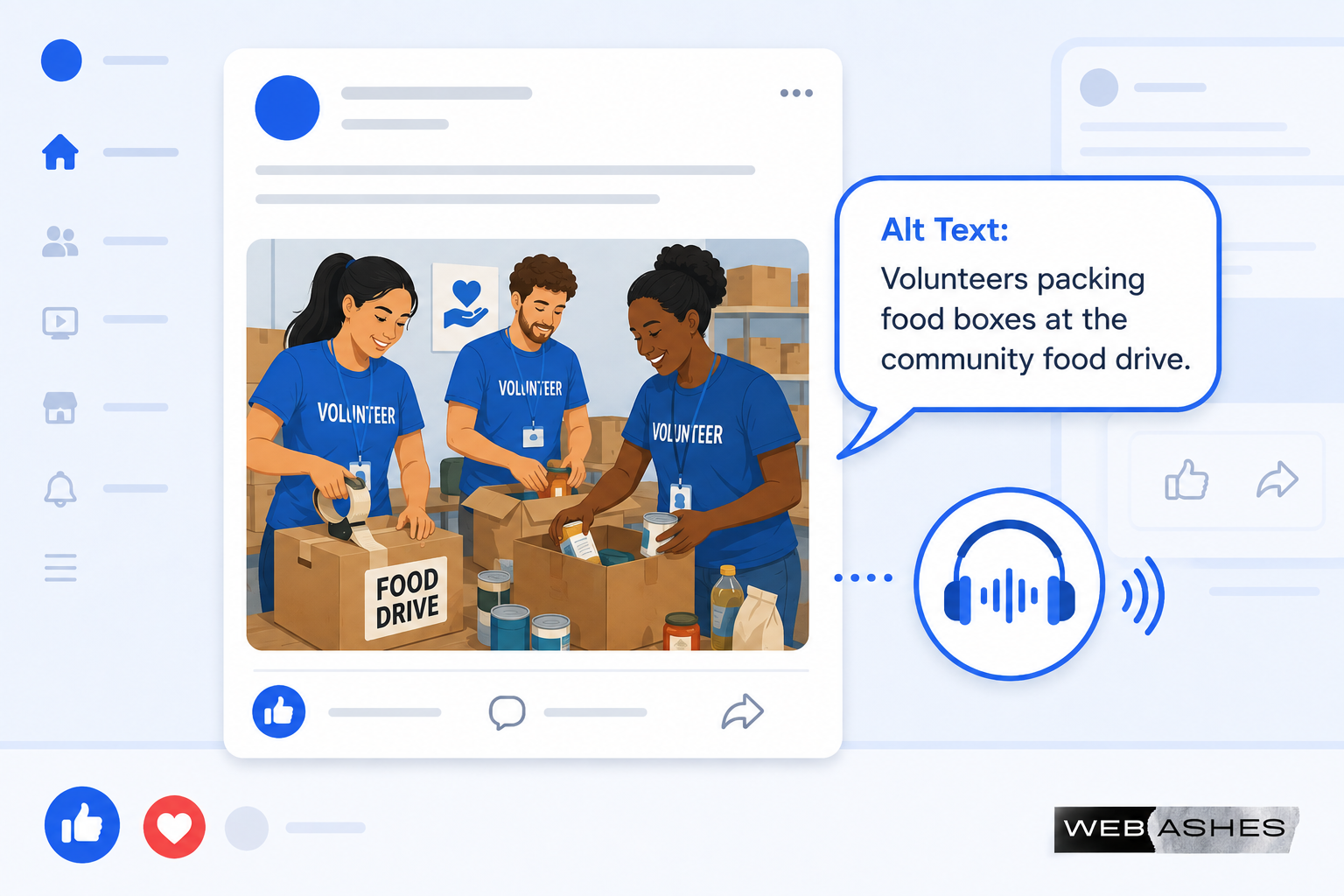
Why Facebook Alt Text Matters More Than You Think
Most people who post images on Facebook have never touched the alt text field. I get it. It’s not obvious that it even exists. And Facebook’s interface doesn’t exactly shout about it.
But here’s the thing: over 2 billion people worldwide have some form of vision impairment. Many of them use screen readers, which are apps that read webpage and social media content aloud. When they encounter a Facebook image without alt text, one of two things happens. Either the screen reader announces something generic like “image” or “photo,” or it reads Facebook’s auto-generated description, which is often wrong, incomplete, or frankly bizarre.
If you’re posting images on Facebook, whether for a personal account, a brand page, or a nonprofit, adding alt text takes about 30 seconds. And it’s the difference between your content being accessible to everyone and being invisible to a significant portion of your potential audience.
In this guide, I’ll cover everything about Facebook alt text: what it is, how to add it on desktop and mobile, how to edit it on existing posts, how to handle it in scheduling tools, and how to write descriptions that actually work.
What Is Alt Text on Facebook?
Alt text, short for alternative text, is a written description attached to an image. On websites, it lives in the HTML alt attribute. On Facebook, it’s stored as metadata attached to the image you upload.
When a screen reader user scrolls through their Facebook feed, the screen reader reads the alt text aloud instead of showing the image. That description is what allows a person with a visual impairment to understand what the image shows and why it’s relevant.
Facebook has offered an alternative text field since 2016. The reason most people don’t use it is simple: it’s not visible unless you know where to look.
Facebook’s Automatic Alternative Text
Here’s something worth knowing before we get into the how-to. Facebook doesn’t leave images without descriptions by default. It uses a feature called Automatic Alt Text (AAT), powered by computer vision AI, to generate descriptions automatically.
When you upload an image and don’t add custom alt text, Facebook creates something like: “Image may contain: 3 people, outdoor, tree.”
That’s better than nothing. But it’s often vague, sometimes wrong, and almost always lacks the context that makes a description actually useful. It doesn’t know what the event was. It doesn’t know the people in the photo. It can’t read text overlaid on graphics. It has no idea what your post is about or why the image matters.
That’s why writing custom alt text for your Facebook images matters. Your own description will almost always be better than what the AI generates.
How to Add Alt Text to Facebook Images: Desktop
The desktop method gives you the most control, and it’s the method I recommend using whenever you have access to a browser.
How to add alt text to a new post on desktop
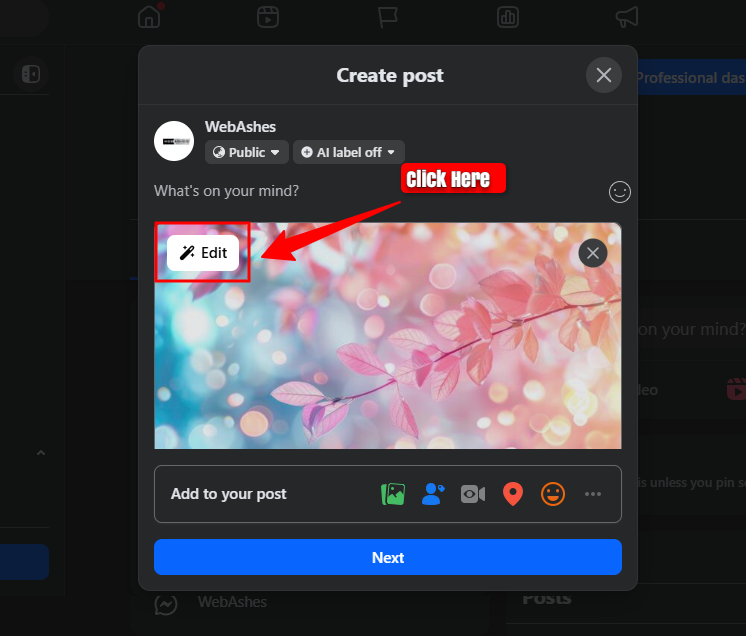
When you create a new post on Facebook and attach an image, you’ll see a thumbnail of the image in the post editor. Before you publish, click the Edit button that appears in the top-left corner of that image thumbnail.
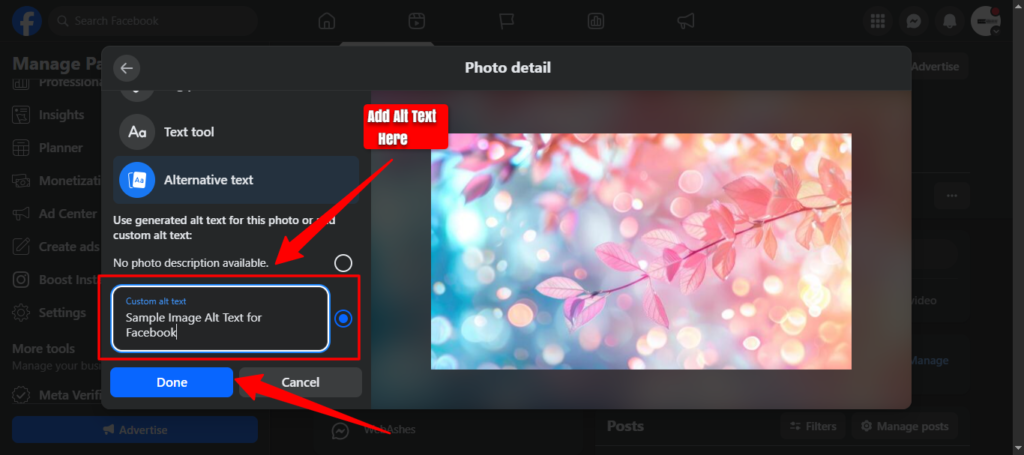
A panel opens with editing options. Look for “Alternative text” or “Alternative Text” in the left-hand menu and click it.
Facebook will show you its auto-generated description. Below that, you’ll see an option to write your own. Click “Custom Alt Text” (or select the radio button for custom alt text, depending on your interface version) and type your description in the text field.
Once you’re happy with it, click Done. Then finish and publish your post as normal.
How to add alt text to existing posts on desktop
Forgot to add alt text before publishing? No problem. You can add or change it at any time.
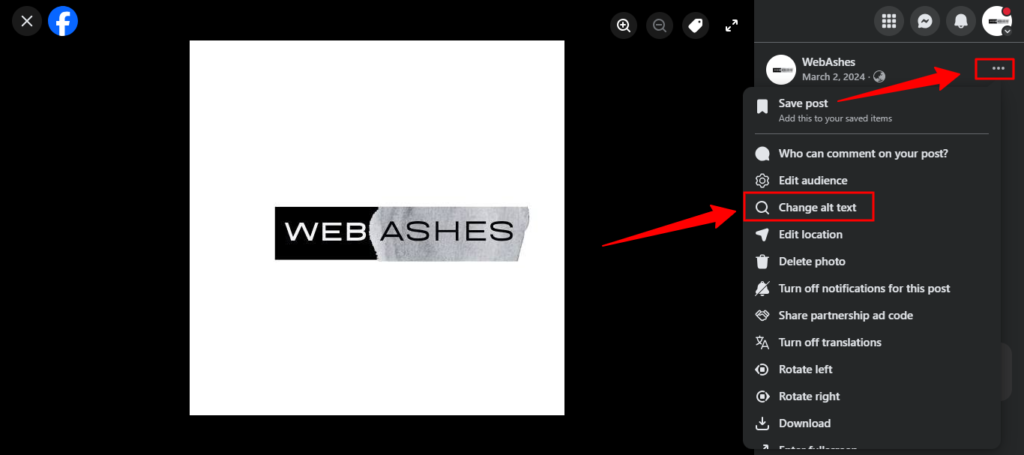
Open the published image by clicking on it in your timeline or page. Once it opens in the expanded view, click the three dots in the upper-right corner of the screen. Select “Change Alt Text” from the dropdown menu.
A dialog box opens showing the current description (either auto-generated or your previous custom text). Click “Override generated alt text” if it’s still showing Facebook’s AI version, then type your new description in the text field. Click Save when done.
How to Add Alt Text to Facebook Images: Mobile
The mobile experience for adding alt text is slightly different depending on your device and Facebook app version.
How to add alt text to a new post on mobile
On the mobile app (Android), after uploading an image to a new post, tap the three dots in the upper-right corner of the image thumbnail. Select “Edit Alt Text” from the menu. Type your description in the field and tap Done.
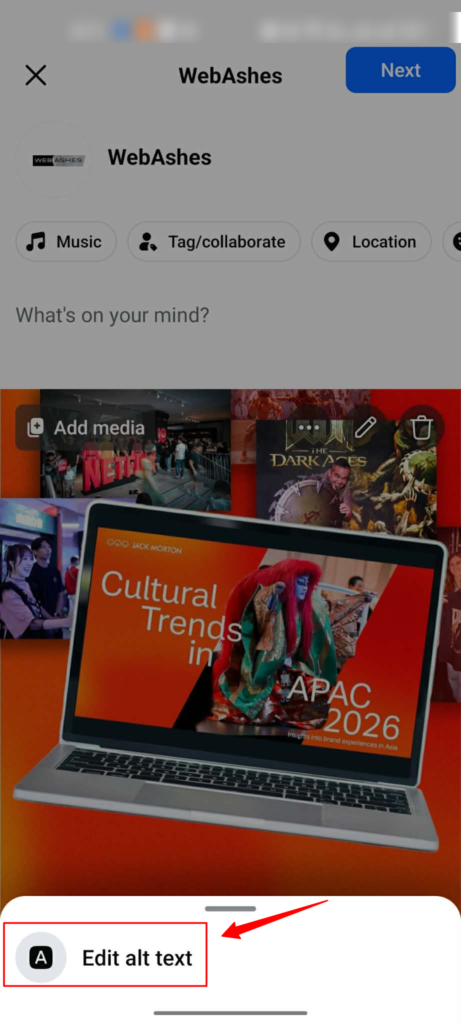
On iOS, the process is similar but worth noting: some versions of the Facebook iOS app don’t allow adding alt text before posting. In those cases, post the image first and then edit the alt text afterward using the method below.
How to edit alt text on existing posts on mobile
Tap the published image to open it in expanded view. Tap the three dots in the upper-right corner. Select “Edit Alt Text” from the options that appear.
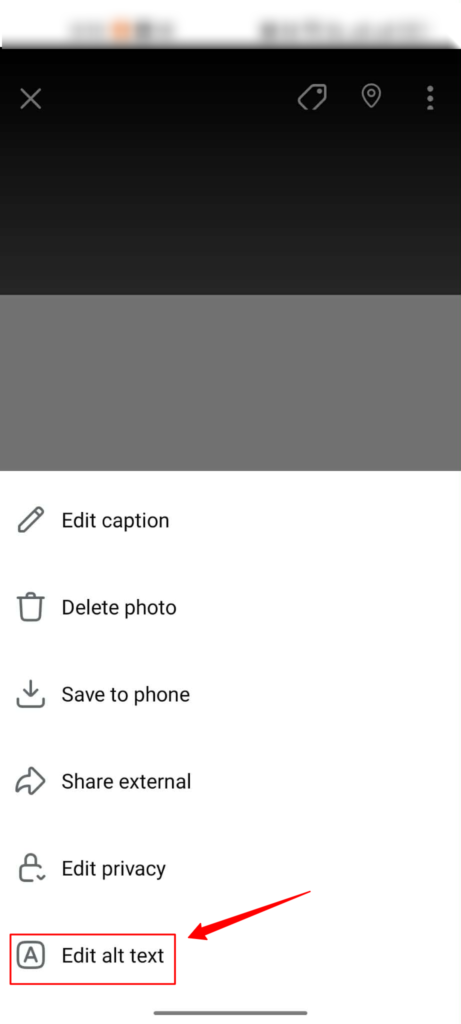
If Facebook’s auto-generated text is shown, tap “Override Alt Text” to replace it with your custom description. Type your text in the field and tap Save.
How to Check Alt Text on Facebook Images
Maybe you want to verify what alt text is currently on an image before editing it, or you want to audit older posts. Here’s how.
On desktop, open the image in expanded view. Click the three dots in the upper right and select “Change Alt Text.” The current description will be visible in the dialog that opens. If it shows Facebook’s auto-generated text (which usually starts with “Image may contain:”), you’ll know custom alt text hasn’t been added.
On mobile, tap the image, tap the three dots, and select “Edit Alt Text.” Same idea. If the description reads like a generic AI summary, it hasn’t been manually customized.
You can also right-click any Facebook image in a desktop browser, select “Inspect,” and look for the alt attribute in the HTML. Whatever is in the alt value is what a screen reader reads.
How to Add Alt Text in Social Media Scheduling Tools
If you use a scheduling tool to manage Facebook posts, the process for adding alt text varies by platform.
Hootsuite
In the Hootsuite Composer, after uploading your image, hover over the image thumbnail. An “Alt” button appears. Click it, type your description in the text box that opens, and click Add. The description attaches to the image for that scheduled post.
Sprout Social
Sprout Social also supports Facebook alt text. After uploading your image, click the pencil icon on the image thumbnail. Select “Add Alt Text” from the popup. Write your description in the field and click Save. An “alt” indicator appears on the image thumbnail to confirm it’s been added.
Buffer
Buffer supports alt text for Facebook images. After attaching an image, look for an alt text option near the image preview. The exact label varies by Buffer interface version, but it’s typically labeled “Alt text” or “Image description.”
A note on third-party tools
One thing worth knowing: alt text added through scheduling tools doesn’t always sync perfectly with Facebook’s native alt text system. After publishing a scheduled post, it’s worth checking the published image on Facebook directly to confirm the alt text came through correctly. If it didn’t, edit it using the native Facebook method above.
How to Write Good Facebook Alt Text
Knowing where to add alt text is the easy part. Knowing what to write is where most people need more help.
Keep it under 125 characters
Most screen readers stop reading after around 125 characters. Some stop even earlier. This isn’t a hard limit that Facebook enforces, but it’s the practical limit that determines what users actually hear.
Write your description first, then check the character count. If it’s over 125, trim it. Focus on the most important information and cut the rest.
Describe what’s in the image, not that it’s an image
Screen readers already announce “image” before reading alt text. So starting with “Image of” or “Photo showing” wastes your first few characters on information the user already has. Start directly with the description.
Instead of: “Photo of a group of people at a charity event.” Write: “Volunteers packing food boxes at the annual community food drive.”
The second version gives more information in fewer characters.
Include text that appears in the image
If your Facebook post image contains text, include that text verbatim in your alt text. Screen readers can’t read text that’s embedded in a graphic file. If you post an event flyer, a sale announcement, or a quote graphic without transcribing the text in the alt description, screen reader users miss the entire message.
The standard approach is: describe the visual first, then include the text using the formula: “With text that reads:” followed by the exact words in quotation marks.
For example: Starbucks cold brew on a diagonal split background. With text that reads “Pistachio Cold Brew.”
If the image is mostly text (like a promotional graphic with a sale offer), prioritize transcribing the text. That’s the most important information.
Skip emojis
Emojis are read literally by screen readers. A single star emoji becomes “white medium star.” A fire emoji becomes “fire.” Multiple emojis in a row create a chaotic string of descriptions that completely disrupts the listening experience. Leave emojis out of alt text entirely.
End with a period
A period at the end of your alt text signals the screen reader to pause before moving on to the next element. Without it, your description and the following content (the post caption or comments) can run together when read aloud. It’s a small detail that makes a real difference for the listening experience.
Don’t try to convey emotion through punctuation
Exclamation points, multiple question marks, and ellipses all have specific effects on how screen readers read text. They can create pauses, changes in tone, or other audio behaviors that disrupt the flow. Write alt text as plain, clean prose.
How to Handle Specific Image Types on Facebook
Event and promotional graphics
These often have both visual elements and important text. Describe the visual briefly, then transcribe all text verbatim. If the flyer says “Join us Saturday August 10th at 6 PM for our annual fundraising gala,” that full text should appear in the alt description. The screen reader user needs that information.
Product photos
Describe the product clearly: what it is, its color or key visual attributes, and any relevant context. For an e-commerce brand posting a product image: “Navy blue leather crossbody bag with gold chain strap, shown on a white background.”
Group photos and event photos
Describe who is in the photo if it’s relevant (number of people, general activity). If specific individuals are identifiable and relevant, you can name them. “Four staff members standing in front of the company booth at the trade show” is more useful than “group of people.”
If the people in the photo aren’t the point of the image, focus on what is. A charity event photo where the point is the event, not the specific people, might read: “Volunteers serving meals at the community kitchen during the holiday drive.”
Memes
Memes need both the visual context and the text. Start by identifying the meme template (what character, scene, or image is being used), then transcribe the text.
Example: Meme of Doctor Evil making air quotes. Text reads: Disclaimer? Right.
If the meme has been edited or photoshopped (a logo removed, a face swapped), mention that change. It’s often the detail that makes the joke work.
Infographics and charts
These are the hardest to handle well in 125 characters. A complex infographic can’t be fully described in a short alt text. The best approach is a two-part strategy: a brief summary in the alt text field, and the full information in the post caption itself.
Alt text: “Infographic showing five steps to reduce food waste at home. See caption for full details.”
Then include the full step-by-step breakdown in the post caption where you have more room and where the text is visible and searchable.
Shared images you didn’t create
If you’re sharing someone else’s Facebook post that contains an image, you can’t edit the alt text on the original image. The workaround is to include a description in your own post caption or in the first comment. It’s not as seamless as native alt text, but it gives screen reader users access to the same information.
Why Facebook’s Automatic Alt Text Often Falls Short
I want to spend a moment on why manual alt text matters even though Facebook does generate descriptions automatically.
Facebook’s Automatic Alt Text system uses computer vision to identify objects, scenes, and sometimes text in images. For a straightforward photo of a landscape, it might do a decent job: “Image may contain: sky, tree, outdoor, nature.”
But it runs into real problems with:
Text in images. Facebook’s AAT can sometimes detect that text is present, but it often misreads it, especially with decorative fonts, overlaid text, or stylized graphics. For a promotional image where the text is the entire point, an inaccurate or incomplete auto-description actively misleads screen reader users.
Context. The AI has no idea what your post is about. A photo of a team standing in front of a building could be a company anniversary photo, a new office opening, a charity event, or a random Tuesday. Auto-generated alt text can’t capture any of that.
People. Facebook’s AAT doesn’t identify people by name unless they’ve been tagged. And even then, it may just say “3 people” rather than giving any meaningful description of the moment.
Humor and tone. A funny photo, a sarcastic graphic, or a before-and-after comparison requires context to understand. The AI won’t capture the joke.
The auto-generated description is better than nothing. But “better than nothing” is a low bar for accessibility. Writing your own description is always the right move.
Facebook Alt Text and Accessibility Compliance
In many countries, digital accessibility is increasingly becoming a legal requirement, not just a best practice.
The European Accessibility Act (EAA) came into effect in June 2025 and requires businesses that offer services to EU consumers to meet accessibility standards, including those for social media content.
The Americans with Disabilities Act (ADA) has been applied to digital platforms including social media pages in various US court cases.
For brand pages, nonprofit organizations, government agencies, and any business with a public-facing Facebook presence, missing alt text on images is a documented accessibility gap. Adding it is one of the simplest steps toward compliance.
Even for personal accounts, the habit of adding alt text is worth building. It takes 30 seconds and makes your posts available to a much wider audience.
Frequently Asked Questions
What is alt text on Facebook and why does it matter?
How do I add alt text to Facebook images on desktop?
How do I add alt text to Facebook images on mobile?
What is the character limit for Facebook alt text?
What is Automatic Alternative Text on Facebook?
How should I handle text inside Facebook images?
Can I add alt text when sharing someone else’s Facebook image?
Can I check what alt text Facebook has already applied to my images?
How do I write alt text for memes on Facebook?
Does adding alt text to Facebook images help with reach or SEO?
The Bottom Line
Alt text on Facebook is one of those things that takes almost no time to add and makes a real difference for a real group of people. The feature has existed since 2016. Most Facebook users still don’t use it.
I’m not going to suggest that you need to go back and manually alt-text every photo you’ve ever posted. But starting now, with your next post, takes 30 seconds. Write a sentence describing what’s in the image. If there’s text in the image, include that text. Add a period at the end. Click save.
That’s the whole practice. Build it into your posting routine and it becomes automatic. Your content becomes accessible. Your audience gets a little bigger. And the people who rely on screen readers to navigate the world don’t hit a wall when they reach your posts.
That’s worth 30 seconds.
Leave a Reply