
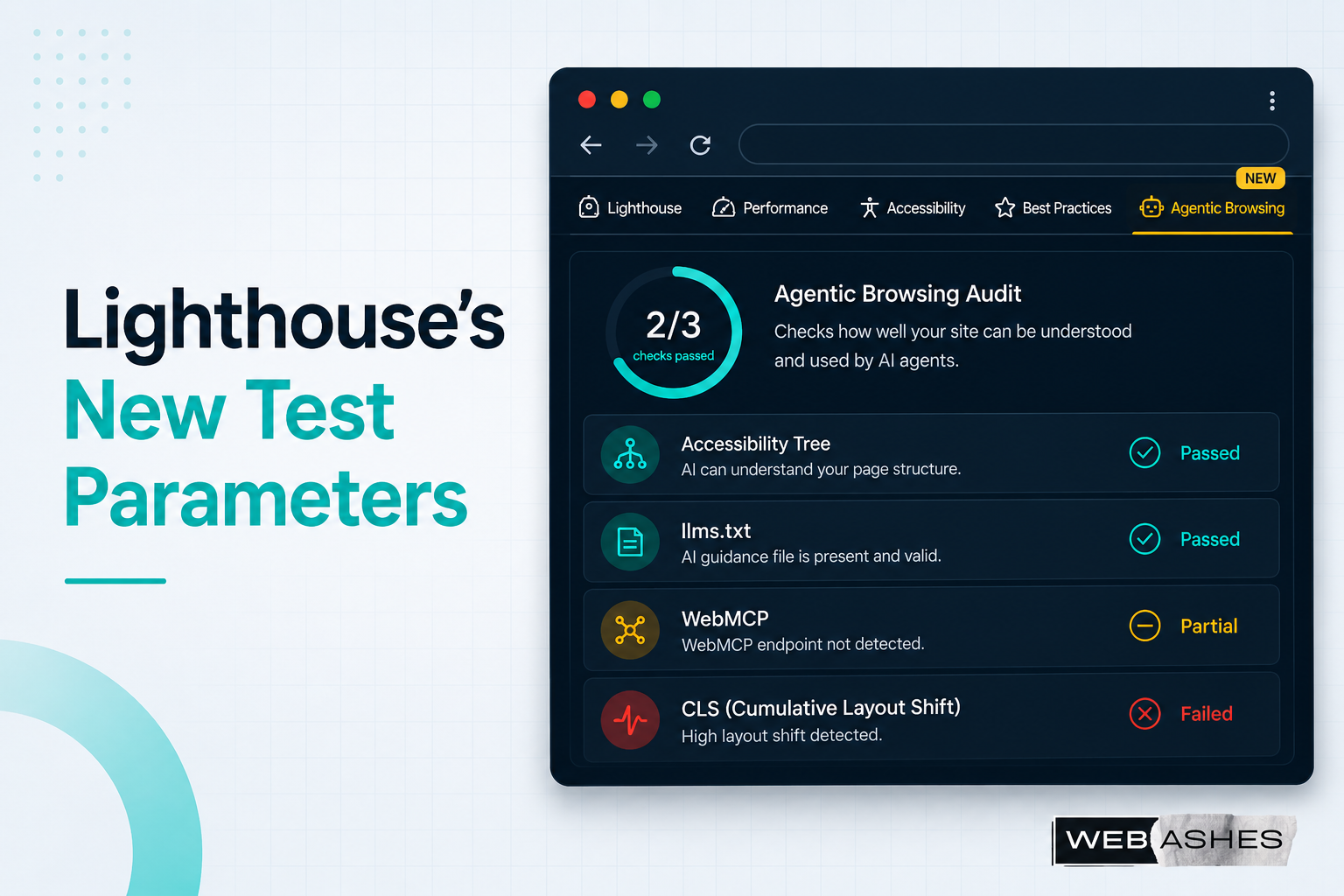
The Test Your Site Has Never Had to Pass – Until Now
You’ve probably run a Lighthouse audit before. You know the drill: Performance, Accessibility, Best Practices, SEO. Four categories, one report, a score from 0 to 100 for each.
With Lighthouse 13.3, shipped in May 2026, there’s a fifth category: Agentic Browsing.
And it asks a fundamentally different question than everything else in the report. Not “Can a human user navigate your site?” Not “Can Googlebot crawl it?” But: “Can an AI agent actually do things on your site on behalf of a user?”
That’s a new bar. Unfortunately, most sites aren’t clearing it yet. One analysis of 11 live sites found an average agentic readiness score of just 17 out of 100.
This blog post walks you through exactly what the new audit tests, what failing looks like in practice, how to fix the most common issues, and how to automate the whole testing process using AI agents and Chrome DevTools.
What Is the Agentic Browsing Category in Lighthouse?
Before Lighthouse 13.3, there was no standardized way to measure whether your site worked for AI agents. You could guess based on accessibility scores and structured data, but nothing directly tested agentic compatibility.
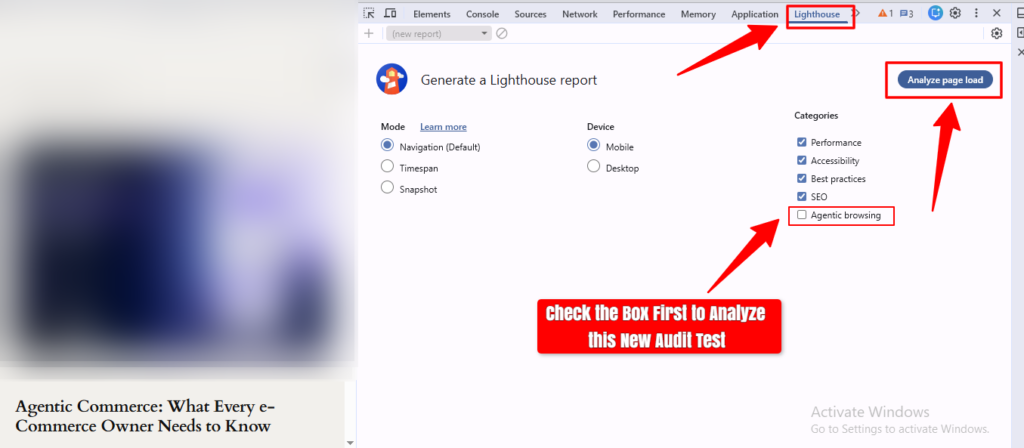
The new Agentic Browsing category fills that gap. Matthias Rohmer from Chrome described it at Google I/O 2026:
“Lighthouse runs with a new agentic browsing category, which enables Lighthouse to run a comprehensive health check for the agentic web.”
However the new Lighthouse testing category works in a bit different way than others. The audits are deterministic – pass or fail – not weighted scores. And unlike every other Lighthouse category, there’s no 0-to-100 grade. You get a fractional pass ratio: something like 2/3 checks passed.
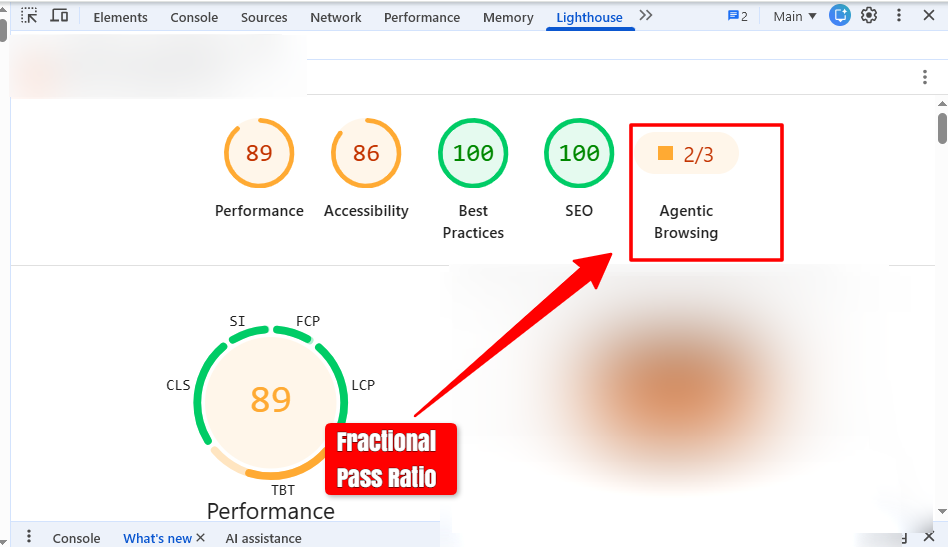
This matters because the standards behind it are still emerging. One thing you must be aware of is that the category is explicitly marked “under development” in Chrome. Think of it less like a final exam and more like a pre-launch checklist that’s going to get more crucial over time.
One reassuring note before we dig in: you don’t fail this audit just for not having WebMCP or llms.txt implemented. A basic, well-built site that passes accessibility fundamentals can still score well. The audit is a realistic health check, not a “have you adopted every new Google API” gate.
The 5 Things Lighthouse Is Actually Testing for Agentic Browsing Audit
Before running the Lighthouse test for AI agents, let’s first understand how this testing process helps you enable agentic browsing audits.
1. Check Accessibility Tree Quality
This is the most important check and it’s rooted in how agents actually navigate the web.
AI agents don’t see your page visually. They primarily interact with the accessibility tree. Cynthia Shelly, Chrome’s Lead Program Manager for Accessibility, describes it precisely:
“The accessibility tree is a tree of accessibility objects that represent the content of the web page. It’s based on the DOM but simplified to remove nodes with no semantic content.”
Google’s own documentation describes the accessibility tree as agents’ “primary data model.” Here, Lighthouse evaluates three specific things here:
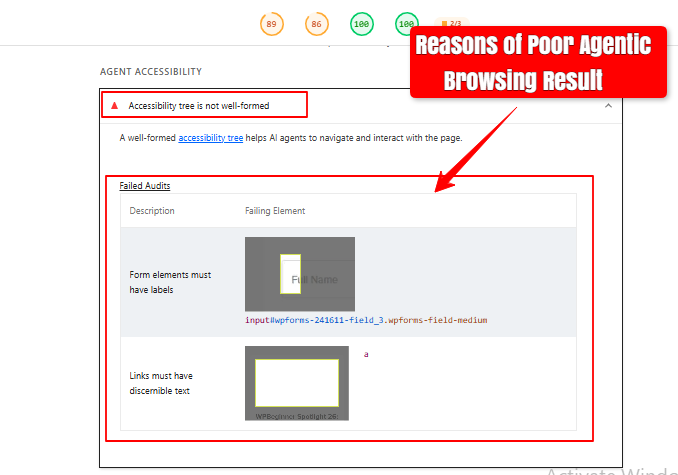
- Programmatic labels on interactive elements (every button, input, and link needs a name)
- Valid accessibility tree structure (no broken ARIA relationships, no orphaned roles)
- Whether interactive content is hidden from assistive systems, like a button marked aria-hidden=”true” is invisible to agents
If your accessibility tree is malformed, agents can’t reliably navigate your pages. This isn’t a new concept, it’s the same work accessibility engineers have always advocated for. The difference now is from now, it has a direct, measurable business impact.
Common failures: Icon-only buttons with no aria-label, form fields using placeholder text instead of a <label>, navigation built from <div> elements with no role=”navigation”, modals missing role=”dialog”.
Shelly also pointed to a practical tool for finding these issues:
“With the new full page accessibility tree in Chrome DevTools, it’s now a lot easier to track down accessibility bugs. You can see the accessibility tree for the whole page, how it relates to the DOM, and easily switch between them.“
And Una Kravets connected the accessibility and agentic goals directly:
“Because most agents navigate the web using the accessibility tree, every ARIA role or label that you optimize doesn’t just help a human. It makes your site more actionable for an agent, too.“
2. WebMCP Tool Registrations
WebMCP is a proposed web standard that lets developers turn their website features into tools that AI agents can directly use. This means that instead of just reading the text on a page, the AI can actually perform tasks and take action on the user’s behalf.
There are two ways to register tools: declaratively via HTML form annotations or programmatically using navigator.modelContext.registerTool. And, Lighthouse validates both:
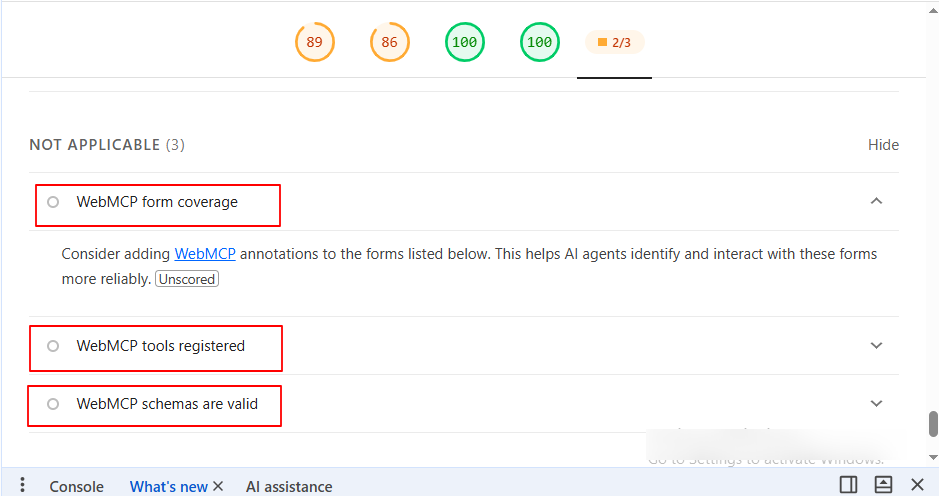
- Are your forms annotated with WebMCP markup?
- Do those annotations match the expected JSON Schema format?
- Does the registerTool call follow the correct structure?
Lighthouse also surfaces a list of every WebMCP tool registered on the page, which is handy for debugging.
One important practical note: Google warns that dynamically registered WebMCP tools and large DOM changes can affect audit results. If your tools are registered after a significant delay or in response to user interaction, they may not appear in the audit at all.
Again, WebMCP is still experimental. If you haven’t implemented it yet, the audit marks it as “Not Applicable” rather than a failure. But if you have implemented it and it’s malformed, that’s a hard fail.
Rohmer described what this check covers at I/O:
“It validates your WebMCP tool registrations and ensures your forms have the declarative metadata that agents need to be successful.”
3. llms.txt Verification
llms.txt is a plain-text file placed at your site’s root that gives AI agents a structured summary of your site’s content and architecture. Think of it as a sitemap, but written for language models rather than crawlers. As Una Kravets put it:
“It also verifies your llms.txt file, a new standard for giving models a clear map of your site’s content.”
Lighthouse checks for “the presence of a machine-readable summary at the domain root.” Google explains the reasoning: “Without llms.txt, agents may spend more time crawling the site to understand its high-level structure and primary content.”
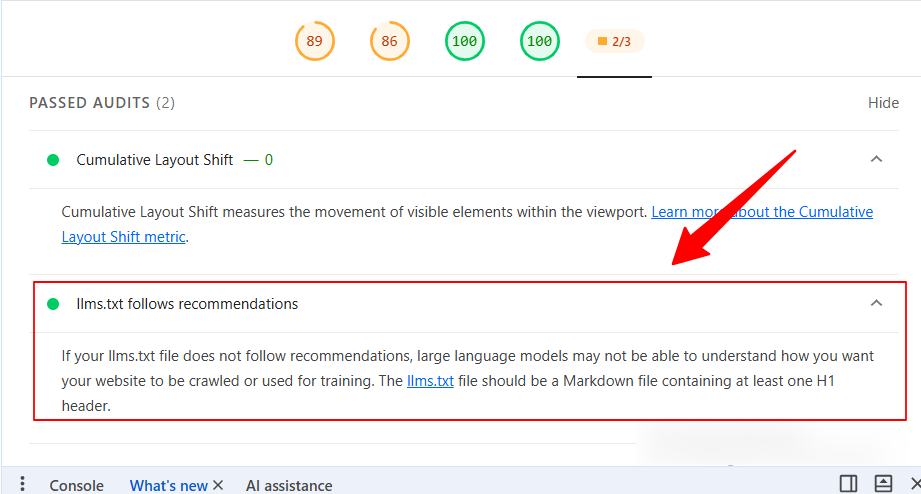
The audit doesn’t just check whether the file exists. If it does exist, Lighthouse checks if the file is missing an H1 header, is too short, or doesn’t contain any links.
Here’s the nuance worth knowing: Lighthouse 13.3 only marks sites as “Not Applicable” for the llms.txt audit if they return a 404; actual errors flag the audit as a failure. So a broken or malformed llms.txt is worse than not having one at all.
Also worth being clear about: this category is separate from SEO audits and indicates that llms.txt helps browser-based agents understand site structure, not improve search rankings or AI citations.Google’s Search team has explicitly said llms.txt doesn’t affect Google Search rankings. The Lighthouse audit is about browser agents. And more precisely, Gemini in Chrome, AI coding agents, autonomous task runners are not about your position in search results.
Let’s look at how a minimal valid llms.txt looks like this:
| # Your Site Name > A brief description of what your site does and who it’s for. ## Key Sections – [Homepage](https://yoursite.com/)- [Products](https://yoursite.com/products/)- [Documentation](https://yoursite.com/docs/)- [Contact](https://yoursite.com/contact/) |
That’s it. An H1, a short description, and links to your main sections. The lighthouse will pass it.
4. Cumulative Layout Shift (CLS)
This one might surprise you! It was already in Lighthouse’s Performance category. But it shows up again in Agentic Browsing. But, this time it’s for a different reason.
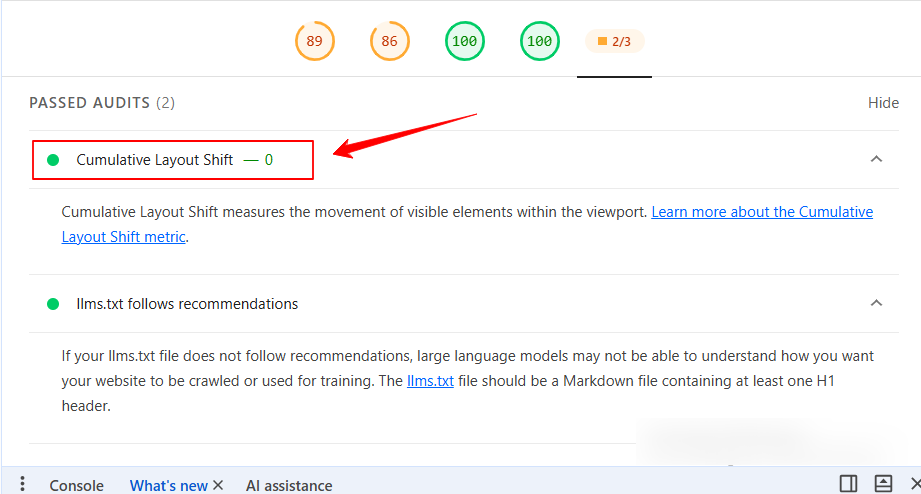
Google’s own guide explains: “Agents that take screenshots will likely be confused if your website layout is constantly shifting.” An AI agent may interact with your page faster than a human would. It clicks elements before the layout has fully settled. If a button shifts position mid-interaction, the agent clicks the wrong thing, or misses entirely.
This is why, the layout stability through CLS is one of Google’s four core agentic readiness signals, alongside WebMCP registration, accessibility tree quality, and llms.txt presence.
If your CLS score is already good in the Performance category, you’re fine here. If it’s not and there are still issues like late-loading fonts, images without dimensions, dynamically injected banners in your website, this is the high time to fix it for performance reasons. And most importantly you should fix it for agents at the same time.
5. Declarative Metadata for Forms
Beyond the accessibility tree, Lighthouse checks whether your website forms contain the metadata agents need to complete tasks accurately. This is distinct from basic accessibility labelling. It’s about giving agents enough context to fill in fields correctly on a user’s behalf.
This means proper <label> elements tied to every input, explicit type attributes on form fields (type=”email”, type=”tel”, type=”date”), and clear submit button labels that describe the action rather than just saying “Submit.”
When an agent is instructed to “contact this company about pricing,” it needs to know which field is for a name, which is for an email, and what the form does when submitted. The more explicit your markup, the more reliably agents can complete those tasks.
Also Read: Image Alt Text Guidelines
How to Run the Agentic Browsing Audit in Lighthouse
Now, let’s move into the main part. Below, I have described multiple options to run the agentic browsing audit in Lighthouse.
Option 1: Command line (recommended for accuracy)
npm install -g lighthouse@latest
lighthouse –view https://yoursite.com
This runs Lighthouse 13.3 with the Agentic Browsing category included by default.
Option 2: DebugBear’s free website grader
PageSpeed Insights and Chrome DevTools still use an older version of Lighthouse, but this should change in the coming months. In the meantime, DebugBear’s free website quality checker runs the latest Lighthouse version and shows the Agentic Browsing tab alongside the standard categories.
Option 3: Chrome DevTools (once updated)
The DevTools version of Lighthouse will be updated to 13.3 in a future Chrome release. When it does, you’ll find Agentic Browsing as a new tab alongside Performance, Accessibility, SEO, and Best Practices.
Graphics-Heavy Sites: The Canvas Problem
If your site uses Canvas, WebGL, or WebGPU for product configurators, 3D viewers, or interactive experiences, you’ve probably been failing accessibility audits for years. Content rendered inside <canvas> is opaque pixels and invisible to the accessibility tree, to screen readers, and to AI agents.
The new HTML-in-Canvas API (available in origin trial via Chrome 148–150) solves this. By adding the layoutsubtree attribute to your <canvas> tag and nesting your DOM content inside it, the browser exposes that content to the accessibility tree as if it were standard HTML. And due to this, visually complex 3D scenes with searchable, indexable, agent-readable content.
Thomas Nattestad demonstrated this at Google I/O 2026:
“Accessibility information is now also exposed, even though this element is inside of the canvas… we can even get an accessibility score of 100, even though all of that content is being put inside of the canvas.“
If you’re running a Canvas-heavy site and your agentic browsing audit is failing the accessibility tree check, implementing HTML-in-Canvas is your fix – not a workaround.
Automating the Audit: Chrome DevTools for Agents
Running the audit manually is fine for a one-off check. But what you really want is a loop where issues are found and fixed without you acting as a human clipboard between the error report and your code editor.
That’s what Chrome DevTools for Agents (the Chrome DevTools MCP server) enables.
When you connect an AI coding agent to Chrome via this MCP server, it gets direct access to:
- The live DOM and accessibility tree
- Console logs and network traffic
- Memory traces
- The ability to run Lighthouse audits and read the results
Paul Kinlan described the full scope of what agents can access at Google I/O 2026:
“By bringing this runtime data into your tools, [AI agents are] able to perform very sophisticated diagnostic tasks like performance profiles, heap snapshots, memory debugging, and then automated Lighthouse tests as well.”
In practice, the loop looks like this:
- Agent inspects the live page
- Agent runs the Lighthouse Agentic Browsing audit
- Agent reads the report and identifies a failing check
- Agent writes the fix
- Agent reruns the audit to verify the fix worked
- Repeat until all checks pass
Una Kravets described why this matters for developer workflow:
“When an issue is surfaced through Lighthouse, you don’t need to be the ‘human clipboard’ anymore, copying an error from DevTools, passing it into a chat, and hoping that the agent guesses the right fix. The agent reads the report for itself, attempts a solution, and can rerun audits to see if that solution worked.“
Setting Up Chrome DevTools MCP (Antigravity IDE) for Running Lighthouse Agentic Browsing audit
Here’s the setup process as recently demonstrated at Google I/O 2026:
- Go to the Chrome DevTools MCP GitHub repository and copy the server configuration block
- Open Antigravity and navigate to MCP settings
- Switch to the raw config editor
- Paste the server block under the mcpServers key, if that key already exists in your config, paste only the inner block to avoid a syntax error
- Save and verify the connection
Once connected, prompt your agent: “Run the Lighthouse Agentic Browsing audit on the current page and fix any failing checks.” That’s it.
Not using Antigravity? The Chrome DevTools MCP is compatible with over 20 other AI coding agents. It also supports a CLI and TypeScript API for teams that want to integrate agentic testing into CI/CD pipelines. So the audit runs automatically on every deployment.
What Realistic Lighthouse Testing Results Look Like
Before you run your first audit, set expectations appropriately.
Airbnb passes only one of three Agentic Browsing checks in Lighthouse: the accessibility tree isn’t well-formed, the llms.txt fetch failed, and all WebMCP audits come back as not applicable. This is a site with hundreds of engineers and a world-class frontend team. Most sites will have similar or worse results on the first audit.
The typical failure pattern from real-world audits:
- Accessibility tree issues — almost universal, because ARIA labelling has always been deprioritised
- No llms.txt — the vast majority of sites haven’t created one yet
- WebMCP — marked Not Applicable for most sites, since it requires deliberate implementation
The good news: the two most common failures: accessibility and llms.txt are both fixable in hours, not weeks. They don’t require new infrastructure or API integrations. They require good markup and one new file.
Your Action List for Running Lighthouse Test for AI Agents
Do today:
- Run lighthouse –view https://yoursite.com and read the Agentic Browsing section
- Create a minimal llms.txt at your domain root with an H1, short description, and links to key sections
- Open Chrome DevTools, switch to the Accessibility tab, enable Full Page Accessibility Tree, and look for unlabelled buttons and form fields
Do this week:
- Fix the highest-impact accessibility tree failures flagged by Lighthouse. Prioritize the missing labels and invalid ARIA roles first
- Audit your CLS score if it’s above 0.1 and address any late-loading elements causing shifts
Plan for next sprint:
- Evaluate WebMCP for your most important user actions (search, contact forms, checkout)
- If you use Canvas or WebGL, explore the HTML-in-Canvas API origin trial
- Set up the Chrome DevTools MCP server in your development workflow for automated agentic testing
Web Design Guide: Feature Snippet Examples
Frequently Asked Questions
Does passing the Agentic Browsing audit improve my Google Search rankings?
Do I need to implement WebMCP to pass?
Is the Agentic Browsing category available in PageSpeed Insights?
How often should I run the agentic browsing audit?
What’s the difference between this and a standard SEO audit?
My site is a single-page app (SPA). Are there specific issues to watch for?
The Bottom Line
The Agentic Browsing audit is the most honest signal we have about how your site performs for the next generation of web users. Not human visitors browsing manually. Not Googlebot indexing your pages. AI agents acting on behalf of users: executing tasks, completing forms, retrieving information.
The audit is still experimental and the standards behind it are still evolving. But the direction is clear, and the foundational work it requires. Good accessibility, stable layouts, clear content structure of a website is the same work that makes your site genuinely better for everyone.
Run the audit today. Fix the easy things first. And build the agent-ready site your visitors’ AI assistants will actually be able to use.
Sources: DebugBear — “Google Lighthouse Has A New Agentic Browsing Category” (Matt Zeunert), Search Engine Land, Search Engine Journal, The Decoder, WinBuzzer, BridgeToAgent, Google I/O 2026 Developer Keynote, Chrome for Developers documentation. Speaker quotes from Matthias Rohmer, Una Kravets, Cynthia Shelly, and Paul Kinlan.
Leave a Reply