If your website is not showing up on Google, the first question to ask is simple: has Googlebot even visited it?
Before a page can rank, before it can appear in search results, and before anyone can find it on Google, Googlebot must crawl it. It is the starting point of everything that happens in Google Search.
This guide explains exactly what Googlebot is, how it works, what user agents it uses, and how you can manage it on your website.
What Is Googlebot?
Googlebot is Google’s automated web crawler that systematically discovers, crawls, and indexes web pages across the internet to build Google’s searchable database.
In simple terms, it is a software program that visits websites, reads their content, follows their links, and sends all of that information back to Google. Google then processes this information and stores it in its search index.
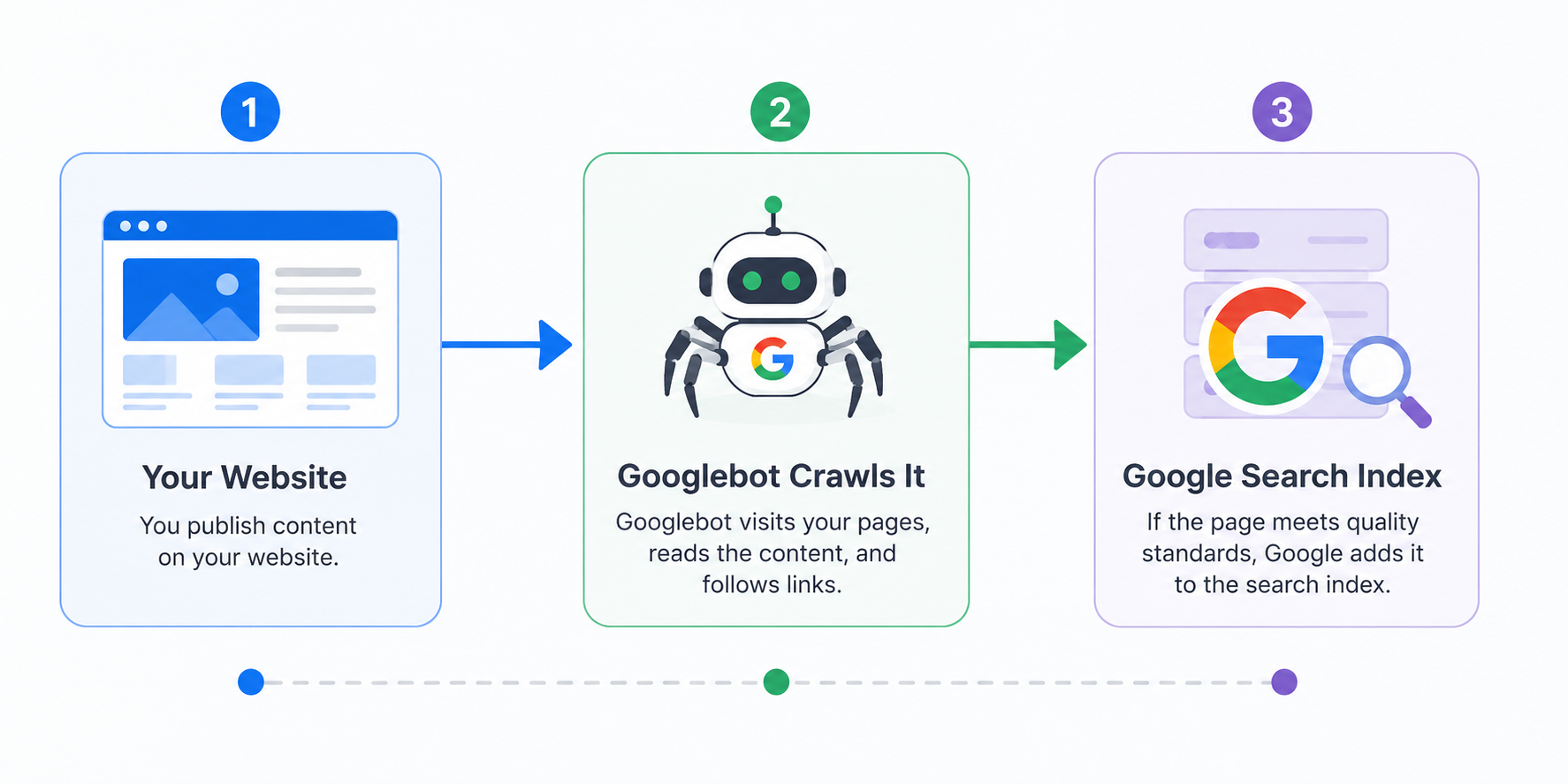
Think of Googlebot like a librarian. It goes out to the web, reads everything it can find, and brings it back to the library so people can search for it later. If the librarian never visits your website, your content never makes it into the library.
Googlebot accounted for more than 25% of all verified bot traffic in 2025, making it by far the dominant web crawler.
Plus, according to Cloudflare Radar, Googlebot is also the fastest crawler on the web, and it accounts for roughly 23.7% of all HTTP requests coming from good bots. For comparison, Ahrefsbot accounts for about 14.27%, Bingbot around 4.57%, and Semrushbot roughly 0.6%. This gap illustrates just how dominant Googlebot’s presence is compared to every other major web crawler combined.
It is not just one bot, though. Googlebot is actually a family of crawlers, each built for a specific purpose.
The two main types are Googlebot Smartphone and Googlebot Desktop. Googlebot Smartphone behaves like a mobile browser and reflects how Google evaluates pages for mobile-first indexing. Googlebot Desktop mimics a desktop browser when crawling sites that are still evaluated from a desktop perspective.
Since Google completed its transition to mobile-first indexing in late 2023, Googlebot Smartphone is now the dominant crawler. This means Google primarily looks at the mobile version of your website when deciding how to index and rank it.
How Does Googlebot Work?
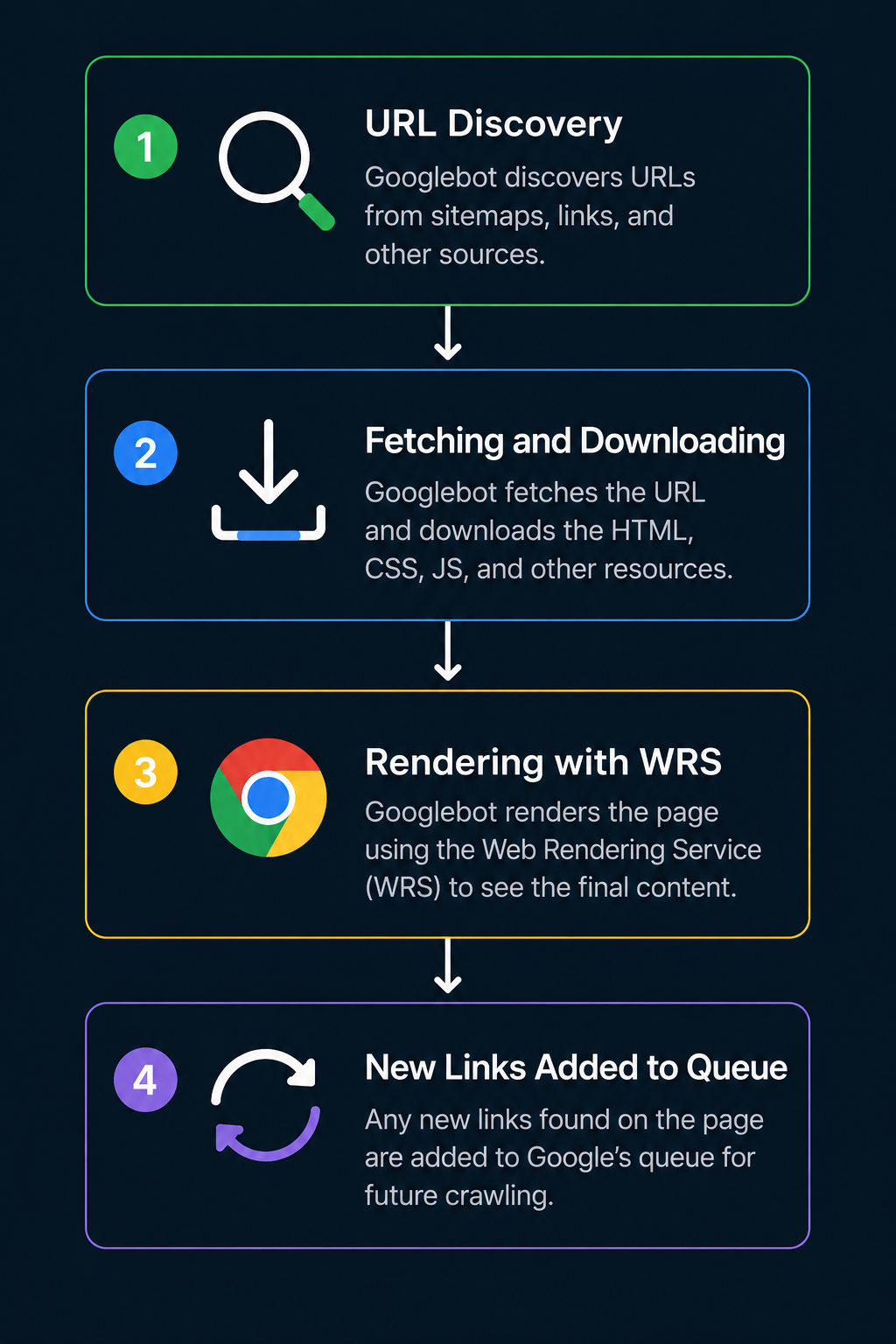
Googlebot follows a four-step process every time it visits and processes a page. Let’s know them better:
Step 1: URL Discovery
Before Googlebot can crawl a page, it has to find it. This is called URL discovery. Googlebot finds new pages through several methods.
The most common method is following links. When Googlebot visits a known page, it reads all the links on that page and adds the new URLs it finds to its crawl queue. This is how most new pages on the web get discovered.
Other discovery methods include XML sitemaps submitted by website owners. They set these manual indexing requests through Google Search Console, and RSS feeds for news and updated content.
Step 2: Fetching and Downloading
Once a URL is in the queue, Googlebot visits it and downloads the content. Googlebot uses an algorithmic process to determine which sites to crawl, how often, and how many pages to fetch from each site. Google’s crawlers are also programmed in such a way that they try not to crawl the site too quickly to avoid overloading it.
During this step, Googlebot acts like a web browser sending a request to your server. Your server sends back the HTML, and Googlebot downloads it.
Step 3: Rendering
Downloading the raw HTML is not enough for modern websites. Many websites today use JavaScript to load content dynamically. Modern Googlebot doesn’t just read raw HTML. After fetching, it queues pages for rendering, during which it executes JavaScript using a Chromium-based engine to produce the final rendered state, just as a user would in a browser.
This rendering step is handled by Google’s Web Rendering Service (WRS). Since 2019, Googlebot has been “evergreen,” meaning it always runs on the latest stable version of Chrome. So it sees your website almost exactly the way a real user does.
Step 4: Adding New Links to the Queue
After rendering the page, Googlebot scans the content again for new links. Any new URLs it finds get added back to the crawl queue for future visits. This cycle keeps repeating, which is how Googlebot continuously discovers and updates its knowledge of the web.
What Is the Googlebot User Agent?
Every time Googlebot visits your website, it identifies itself through something called a user agent string. This is a short line of text sent in the HTTP request header that tells your server who is making the request.
What Is a User Agent?
A user agent is essentially an ID tag. It tells the server what kind of browser or bot is visiting. When you open a website in Chrome, your browser sends a user agent that says it is Chrome. When Googlebot visits, it sends a user agent that says it is Googlebot.
In robots.txt, the user agent field is how you target specific bots. You write rules saying “this bot can visit here” and “this bot cannot visit there.” The user agent is what determines which rule applies to which bot.
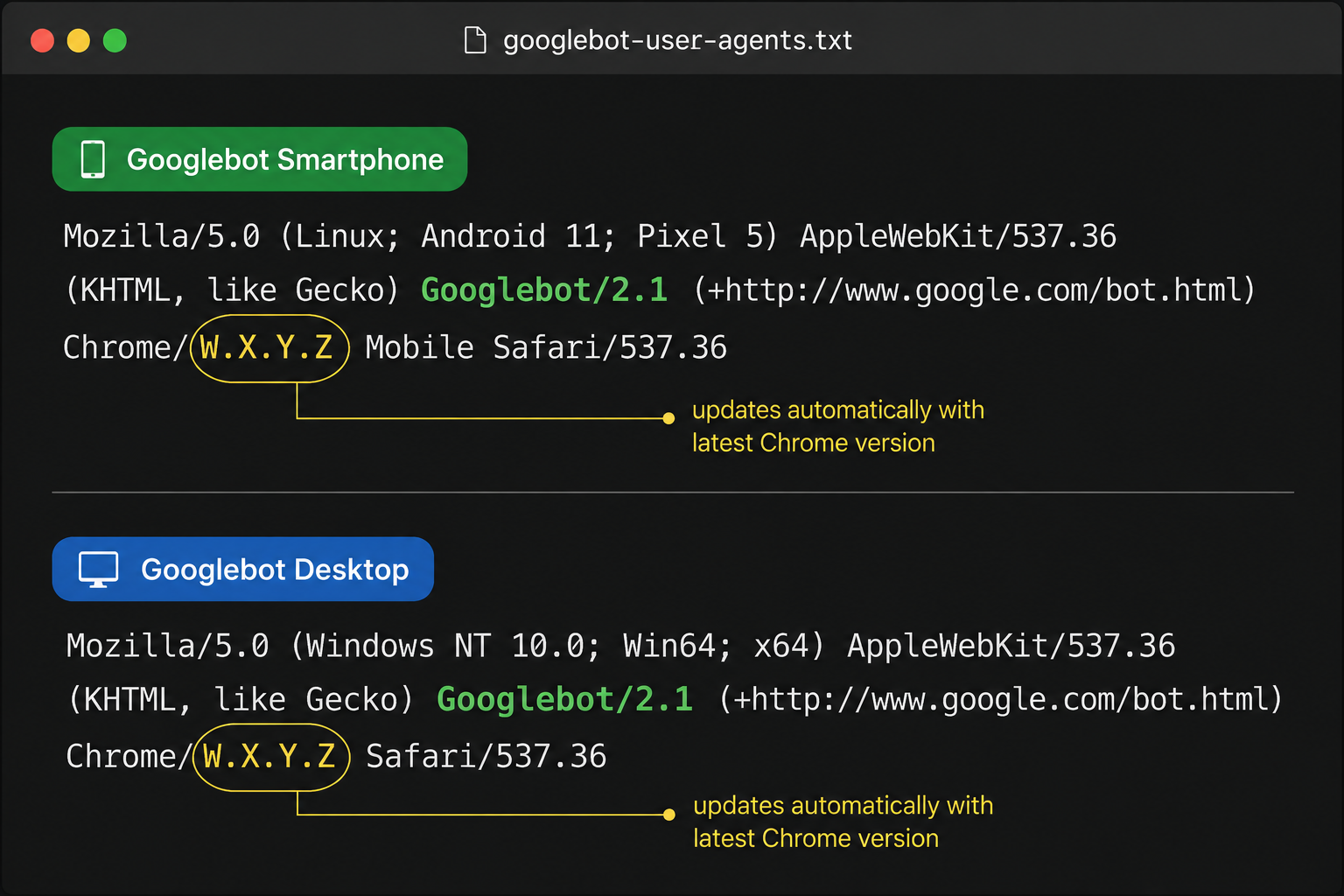
What Is the Googlebot User Agent String?
Googlebot has two main user agent strings: one for smartphone and one for desktop.
The Googlebot Smartphone user agent string is:
Mozilla/5.0 (Linux; Android 6.0.1; Nexus 5X Build/MMB29P) AppleWebKit/537.36 (KHTML, like Gecko) Chrome/W.X.Y.Z Mobile Safari/537.36 (compatible; Googlebot/2.1; +http://www.google.com/bot.html)
The Googlebot Desktop user agent string is:
Mozilla/5.0 AppleWebKit/537.36 (KHTML, like Gecko; compatible; Googlebot/2.1; +http://www.google.com/bot.html) Chrome/W.X.Y.Z Safari/537.36
The W.X.Y.Z you see in both strings is a placeholder. It represents the current version of Chrome that Googlebot is running. This version number changes over time as Googlebot updates to the latest Chrome release. When you are writing scripts or filters to detect Googlebot in server logs, always use wildcards instead of matching the exact version number.
One important thing to know: both Googlebot Smartphone and Googlebot Desktop use the same product token – Googlebot – in robots.txt. This means you cannot block one and allow the other. Any rule you write for Googlebot applies to both types.
How to Set or Switch User Agent to Googlebot for Testing
If you are a developer or SEO professional and you want to test how your website looks to Googlebot, you can switch your browser’s user agent to the Googlebot string.
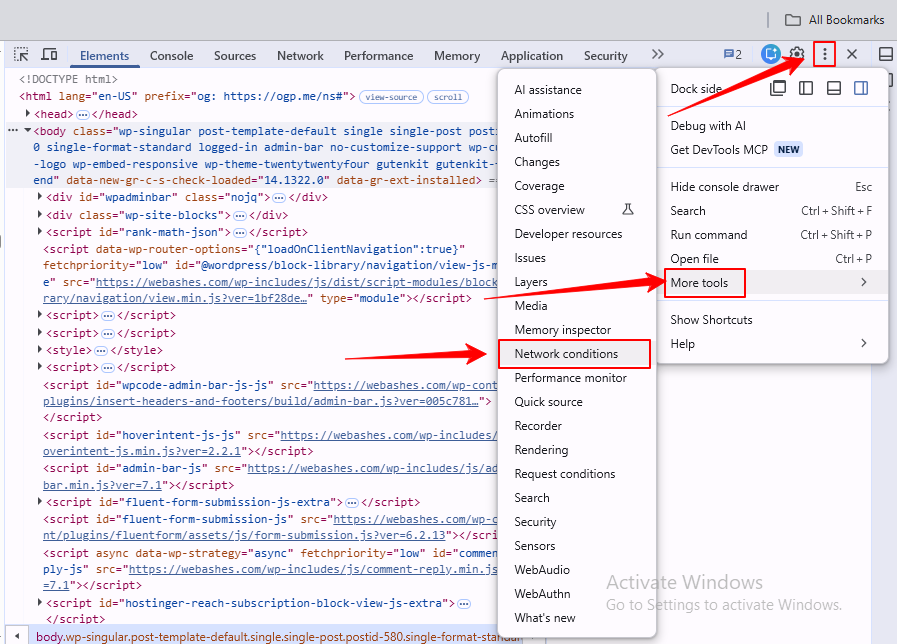
In Chrome, you can do this through the developer tools. Open DevTools, go to the three-dot menu, select “More tools,” then “Network conditions.”
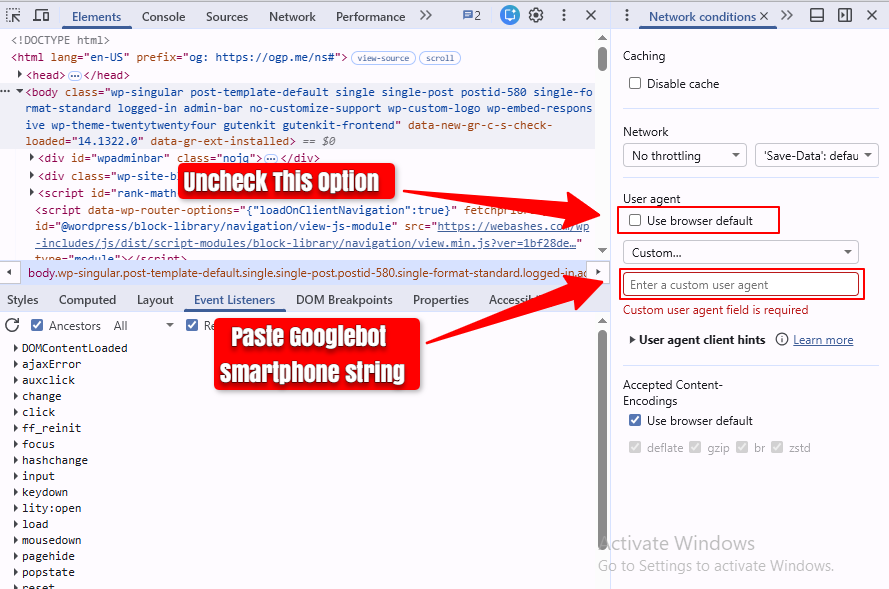
Up next, uncheck “Use browser default” under User agent and paste the Googlebot Smartphone string into the custom field.
This lets you simulate how Googlebot sees your pages. However, the better and more accurate way to test is through Google Search Console’s URL Inspection Tool, which shows you exactly how Googlebot renders your page.
How to Test Googlebot Using curl
If you are comfortable with the command line, you can also test how your server responds to Googlebot without opening a browser at all. This method is especially useful for checking raw server responses, redirects, and status codes before any JavaScript rendering happens.
Here is the command to run in your terminal:
curl -A “Mozilla/5.0 (compatible; Googlebot/2.1; +http://www.google.com/bot.html)” https://yoursite.com
The (-A) flag sets the user agent string for the request. This tells your server to respond as if Googlebot is visiting. Additionally, you can pipe the output to a file or use (-I) instead of the full request to see only the response headers:
curl -I -A “Mozilla/5.0 (compatible; Googlebot/2.1; +http://www.google.com/bot.html)” https://yoursite.com
This is useful for quickly checking if your server returns the correct status code, redirect behavior, or blocks the request entirely for the Googlebot user agent. Also keep in mind that curl does not execute JavaScript, so this only shows you the raw HTML response, not the fully rendered page. For that, you still need Google Search Console’s URL Inspection Tool.
Specialized Google Crawlers
Googlebot is the main crawler, but Google also runs several specialized crawlers. Each one has a specific job and its own user agent string. Let’s discuss some of them:
Googlebot-Image:
Googlebot-Image is the crawler Google uses specifically for finding and indexing visual content. Its user agent string is Googlebot-Image/1.0.
Does Googlebot scan and download images?
Yes, it does. Googlebot-Image visits web pages and downloads images to index them for Google Images. It reads image file formats, checks alt text, and looks at the surrounding content to understand what an image is about.
If you do not want your images to appear in Google Images search results, you can block Googlebot-Image specifically in your robots.txt file while still allowing the main Googlebot to index your text content. This gives you fine-grained control over what appears where.
Googlebot-Video:
Googlebot-Video is Google’s specialized crawler for video content. The user agent string it uses is Googlebot-Video/1.0. It crawls web pages looking for video files and video metadata to index them for video-related search experiences on Google.
If you publish video content on your website, Googlebot-Video is the crawler responsible for finding and indexing it. You can allow or block it independently of other Google crawlers.
Googlebot-News
Googlebot-News is dedicated to discovering time-sensitive news content for Google News. What makes it unique is that it does not use its own separate user agent string. It crawls using the standard Googlebot Smartphone or Desktop strings. You target it in robots.txt using the Googlebot-News token.
Google StoreBot
Google StoreBot is a specialized crawler focused on e-commerce. It gathers product data, like prices, listings, and availability, to keep Google Shopping results up to date. It uses two user agent strings: one simulating a mobile device (Storebot-Google/1.0 alongside a mobile identifier) and one simulating a desktop.
If you run an online store and your products are not showing up in Google Shopping, then my recommendation is to check whether StoreBot can access your product pages is a good starting point.
Google-InspectionTool
First, I want to clarify that Google-InspectionTool is not a standard crawling bot. It mimics Googlebot but is only used by Google Search Console tools like the URL Inspection Tool and the Rich Result Test. It does not affect your actual search rankings or indexing. It is purely for testing.
GoogleOther
GoogleOther is a general-purpose crawler that Google introduced in 2023. It is used by various internal Google teams for research, development, and one-off tasks. It doesn’t have a direct role in search indexing.
However, you have to remember that Googlebot accounted for more than 25% of all verified bot traffic in 2025. GoogleOther contributes a smaller but steady share of crawl volume on top of that. You can control it in robots.txt using the GoogleOther token.
Mediabot (Mediapartners-Google)
Mediabot is the crawler used by Google AdSense. It visits pages that contain AdSense code to understand the content and serve relevant ads. Unlike other Google crawlers, Mediabot does not follow links to discover new pages. It only visits pages where AdSense is already present. It can also be granted access to pages behind login walls if needed for ad serving.
What Is Google-Extended?
Google-Extended is not a separate crawler. It is a control token you can add to your robots.txt file to manage how Google uses your content for artificial intelligence training.
Specifically, Google-Extended controls whether your content can be used to train Google’s Gemini models and to power Gemini Apps and Vertex AI.
The key distinction here is important. Standard robots.txt entries target specific bots. Google-Extended is different; it targets the purpose of the data collection rather than the bot itself. The actual fetching is still done by standard Googlebot. But by blocking Google-Extended, you tell Google not to use that fetched content for AI training.
The best part: blocking Google-Extended has zero impact on your search visibility. Googlebot will continue to crawl and index your pages for standard search results exactly as before. You are only opting out of the AI training pipeline.
To block Google-Extended in your robots.txt, you would write:
User-agent: Google-Extended Disallow: /
This is one of the most frequently used AI-related blocks among top websites today, trailing only OpenAI’s GPTBot in adoption.
How to Manage Googlebot with robots.txt
Your robots.txt file is the primary tool for telling Google’s crawlers where they can and cannot go on your website.
What Does User Agent Mean in robots.txt?
In robots.txt, the User-agent field is where you specify which crawler a rule applies to. You write User-agent: Googlebot to target Google’s main crawler. You write User-agent: * to apply a rule to all crawlers.
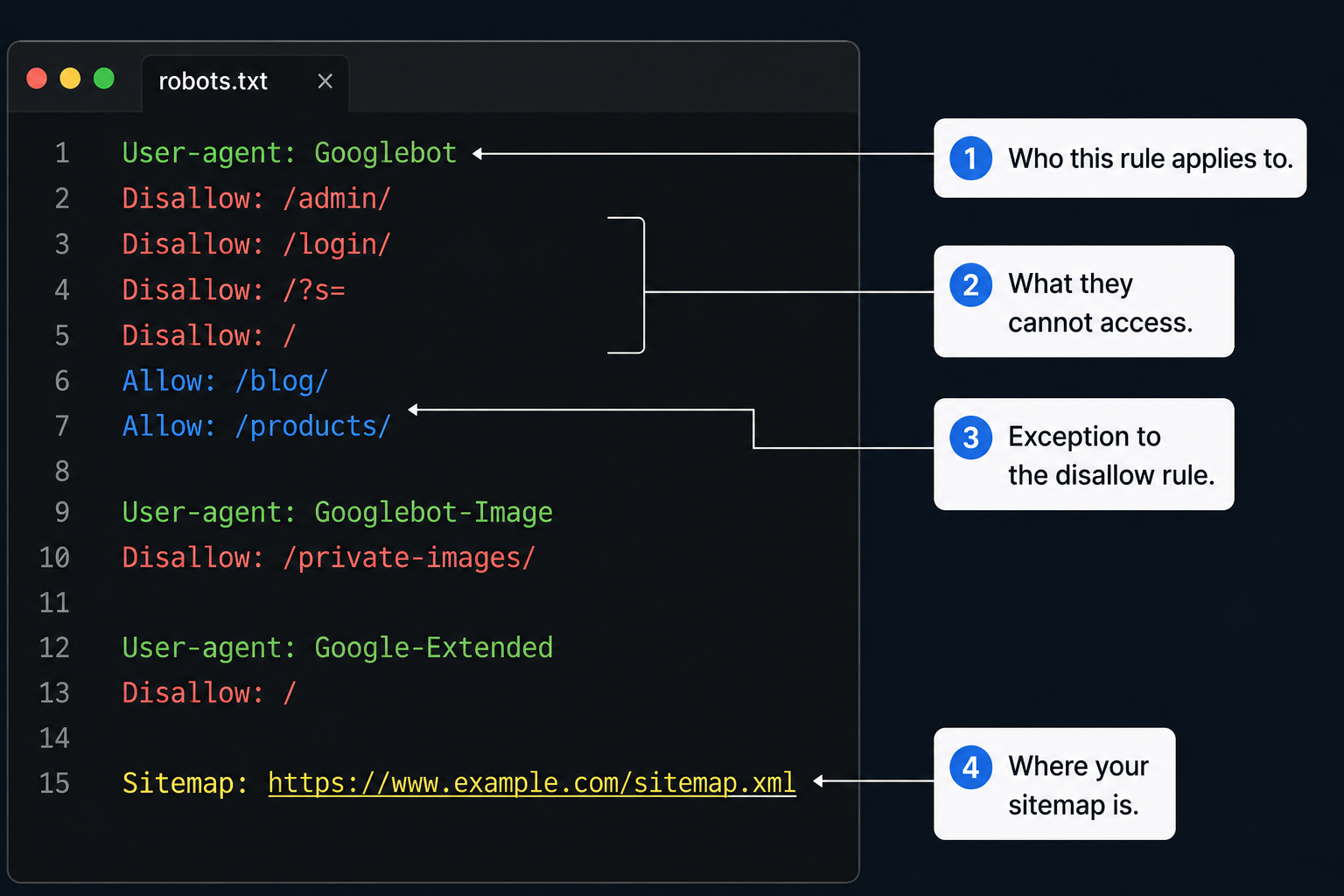
Here is a simple example:
User-agent: Googlebot Disallow: /admin/ Allow: /
This tells Googlebot it cannot visit the admin section but can visit everything else.
Controlling Googlebot with a Meta Tag
robots.txt is not the only way to control Googlebot. You can also use a meta tag placed directly in the <head> of a specific page. The difference is that robots.txt blocks crawling at the site or folder level, while a meta tag gives you page-level control and can target Googlebot specifically, separate from other crawlers.
<meta name=”googlebot” content=”noindex, nofollow”>
This tells Googlebot specifically not to index this page and not to follow links on it. You can also use the generic version, which applies to all crawlers:
<meta name=”robots” content=”noindex, nofollow”>
The Googlebot-specific tag is useful when you want different rules for Google versus other search engines or bots. For example, you could allow Bing to index a page while blocking Googlebot from it, or vice versa.
One important distinction: unlike robots.txt, which can prevent a page from being crawled at all, a meta noindex tag still requires Googlebot to crawl the page first in order to read the tag. If you block a page in robots.txt, Googlebot never sees the noindex tag on it, because it never visits the page in the first place.
How Googlebot Reads robots.txt Rules
Googlebot reads your robots.txt file from top to bottom. It looks for the most specific rule that matches its user agent. If there is a rule specifically for Googlebot and a separate rule for all bots, Googlebot will only follow the rule written for it specifically and ignore the general one.
Your robots.txt file must be placed at the root of your domain, for example, https://www.yoursite.com/robots.txt. It cannot be placed in a subfolder. It must be plain text encoded in UTF-8.
Another thing you should be aware of is that rules in robots.txt are case-sensitive. /Admin/ and /admin/ are treated as two different paths.
You can also include your sitemap URL in the file:
Sitemap: https://www.yoursite.com/sitemap.xml
Testing and Submitting Your robots.txt
You can test your robots.txt file using the robots.txt report inside Google Search Console. This tool checks your syntax and shows you which URLs are blocked and which are allowed.
Google caches your robots.txt automatically. If you make urgent changes, you can ask Google to refresh its cached copy through Search Console.
Technical Properties and Limits
In this part of the Googlebot guide, I will introduce you to some of the technical properties and limits that influence and guide how your website is being crawled.
The 2MB HTML Cutoff
Googlebot currently fetches up to 2MB for any individual URL. This means it crawls only the first 2MB of a resource, including the HTTP header. For PDF files, the limit is 64MB.
If your HTML page exceeds 2MB, Googlebot does not reject it directly. Rather, it stops downloading at the 2MB mark and works with only what it downloaded. Anything beyond that point, like text, links, structured data, meta tags, etc is completely invisible to Google.
This is why it matters to keep your HTML lean. Move large blocks of CSS and JavaScript to external files. Put your most important elements, such as title tags, meta descriptions, and canonical tags, near the top of the HTML document. That way they are always read before the cutoff.
External assets like CSS and JavaScript files are fetched separately by the Web Rendering Service and have their own individual byte limits. They do not count toward the parent page’s 2MB limit.
HTTP Protocols and Compression
Googlebot supports both HTTP/1.1 and HTTP/2, automatically choosing whichever performs better for your site. It also supports gzip, deflate, and Brotli compression formats.
How Googlebot Handles Server Downtime
If your server returns a 503 (Service Unavailable) or 429 (Too Many Requests) status code, Googlebot recognizes this as a temporary issue and retries the URLs for about two days. If the errors continue beyond that window, Google may start dropping those URLs from its index.
Do note that you should never return a 200 (successful) status code for a maintenance page. If you do, Googlebot will think the maintenance message is your actual content and may index it instead of your real pages.
How to Verify a Googlebot Request
Just because a visitor claims to be Googlebot in its user agent header does not mean it actually is. User agent strings are easy to fake. Malicious bots and scrapers often pretend to be Googlebot to bypass security rules.
There are two reliable ways to verify that a request genuinely comes from Google.
Method 1: Manual DNS Lookup
This is the most common method for one-off checks. Here is how it works:
Take the IP address from your server log. Run a reverse DNS lookup on it using a command like: host [IP address]. Check that the returned hostname ends with googlebot.com, google.com, or googleusercontent.com.
Then run a forward DNS lookup on that hostname. Check that the returned IP matches the original IP from your log.
If both IPs match and the hostname ends with the correct domain, the request is genuinely from Google.
Method 2: Automatic IP Range Matching
For large-scale verification, Google publishes official JSON files listing all IP ranges used by its crawlers. You can check any incoming IP against these lists automatically.
Google provides separate files for common crawlers like Googlebot, special-case crawlers like AdsBot, and user-triggered fetchers. You can integrate these checks into your firewall or security system to automatically verify or flag bot traffic.
AI Crawlers vs Googlebot
Googlebot is no longer the only major crawler visiting your website. A new wave of AI bots has arrived, and they behave very differently.
Traditional crawlers like Googlebot crawl your site to index it for search results. The goal is to send traffic back to your website. AI crawlers like GPTBot (OpenAI), ClaudeBot (Anthropic), and PerplexityBot collect your content to train large language models (LLMs) or power AI answer engines. They do not send traffic back to your site.
AI crawlers surged about 305% in recent years. GPTBot, ClaudeBot, PerplexityBot, and others now compete for the same server bandwidth. Every request your server handles reduces its available capacity for the next request.
This is becoming a real problem for sites on shared hosting. When AI bots send thousands of requests per day, your server slows down. When your server slows down, Googlebot detects the slower response and reduces its crawl rate. So AI bot traffic can indirectly hurt your Google crawl budget.
You can manage this through robots.txt. Block AI crawlers you do not want while keeping Googlebot fully accessible. Use Google-Extended if you want to stop your content from being used for AI training while staying fully visible in Google Search.
Quick Reference: All Google Crawlers and Their User Agent Tokens
Here is a consolidated list of every Google crawler covered in this guide, along with the exact token you use to target it in robots.txt.
| Crawler | Purpose | User Agent Token |
|---|---|---|
| Googlebot Smartphone | Main mobile crawler for search | Googlebot |
| Googlebot Desktop | Main desktop crawler for search | Googlebot |
| Googlebot-Image | Image indexing for Google Images | Googlebot-Image |
| Googlebot-Video | Video indexing | Googlebot-Video |
| Googlebot-News | Time-sensitive news content | Googlebot-News |
| Storebot-Google | E-commerce product data for Shopping | Storebot-Google |
| Google-InspectionTool | Search Console testing tools | Google-InspectionTool |
| GoogleOther | Internal Google research and development | GoogleOther |
| GoogleOther-Video | Internal video-related research | GoogleOther-Video |
| Google-CloudVertexBot | Fetching for Vertex AI-related products | Google-CloudVertexBot |
| Mediapartners-Google | AdSense ad relevance | Mediapartners-Google |
| Google-Extended | AI training opt-out control | Google-Extended |
Note that Googlebot Smartphone and Googlebot Desktop share the same token, “Googlebot,” in robots.txt. You cannot write separate rules for them.
The Role of Googlebot in Website Indexing
It is important to understand that crawling and indexing are two separate things. Googlebot crawling your page does not automatically mean the page will be indexed.
After Googlebot crawls and renders a page, Google’s systems analyze the content. They check for quality signals, look for duplicate content, and decide whether the page is worth adding to the index. Pages that are thin, duplicated, or low quality may be crawled but never indexed.
This is why you might see URLs in Google Search Console with the status “Crawled — currently not indexed.” Googlebot visited the page. It just did not decide to include it in the search index.
To give your pages the best chance of being indexed after crawling, make sure the content is original and genuinely useful. Use internal links to point Googlebot toward your most important pages. Keep your site technically clean with no broken links, no soft 404s, and proper canonical tags.
Frequently Asked Questions About Googlebot
What is Googlebot?
What is the Googlebot user agent string?
What is Googlebot-Image?
Does Googlebot download images?
What is Googlebot-Video?
What does user agent mean in robots.txt?
What user agent does Google use?
How to change the user agent to Googlebot for testing?
How to set the user agent to Googlebot 2.1?
What is Google-Extended?
How does Googlebot differ from AI crawlers?
How do I stop Googlebot from crawling certain pages?
How can I verify if a request is really from Googlebot?
What is Google StoreBot?
Does Googlebot crawl JavaScript?
Wrap Up!
Googlebot is the starting point for everything that happens in Google Search. If it cannot find, access, and understand your pages, nothing else matters, not your content quality, not your backlinks, not your keywords.
The key things to take away from this guide are these. Googlebot is not a single bot; it is a family of crawlers, each built for a specific purpose within Google’s overall crawling architecture.. It identifies itself through user agent strings that you can target in robots.txt. It has a 2MB limit for HTML, so keeping your code lean matters. You can verify it through DNS lookups rather than just trusting the user agent header. And the new generation of AI crawlers is competing for the same server resources, which means managing your bot traffic well is now more important than ever.
Understanding Googlebot is not just a technical exercise. It is the foundation of making your website visible to the world through Google Search.
Leave a Reply